Purpose
To view and enable SSE (SASE) features in Concerto.
Steps
Step 1 — Verify Director License
In order to view SSE tabs in Concerto, the Director needs to have a license called "cloud_security".
Step 2 — Understand Parent Tenant Limitation
If you have only 1 Tenant (Parent Tenant), SSE features will not be visible under this Tenant by design. As shown below, the Parent Tenant (Mitsubishi) does not have SSE features available. Only the SD-WAN feature will be selected by default.
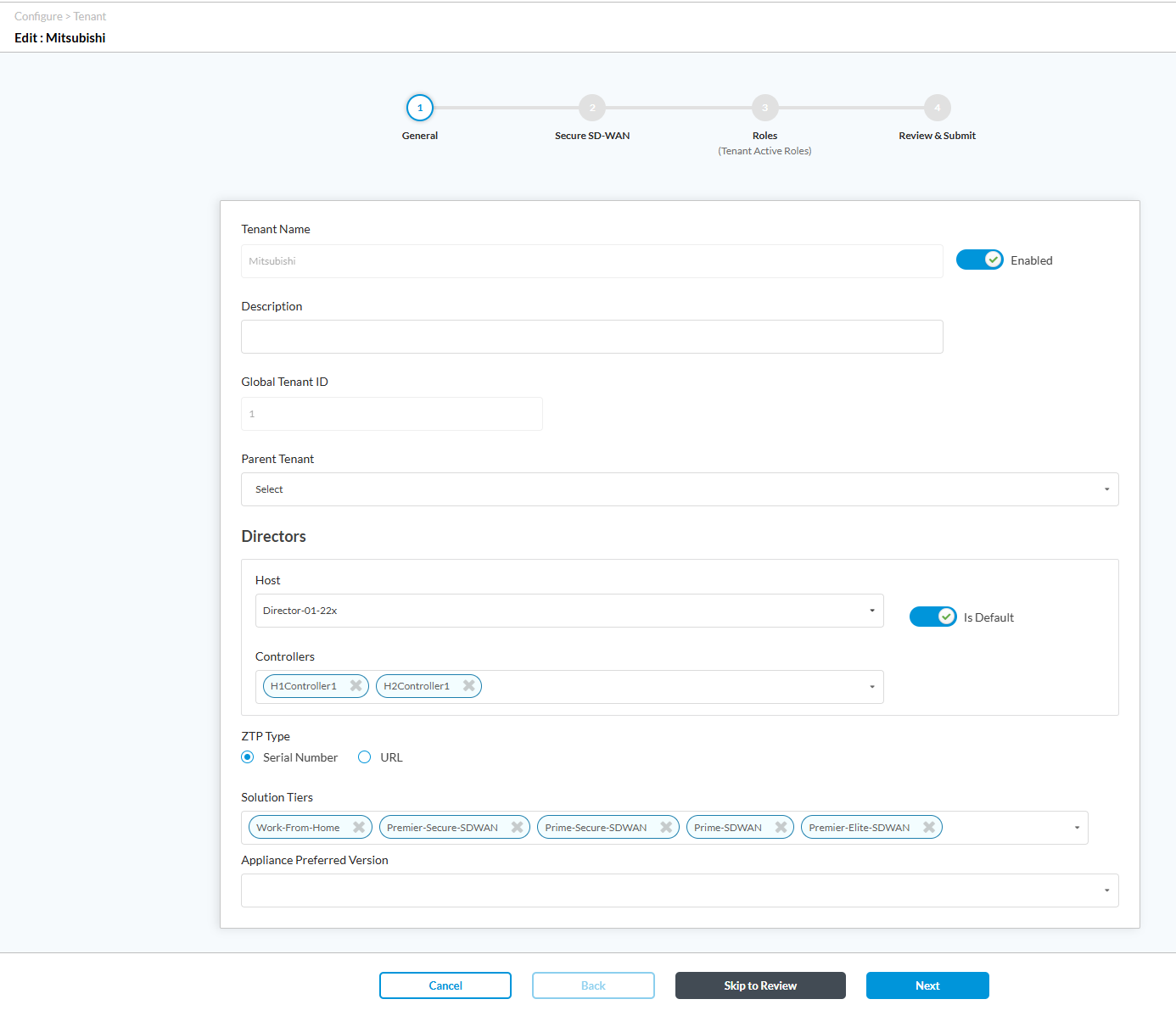

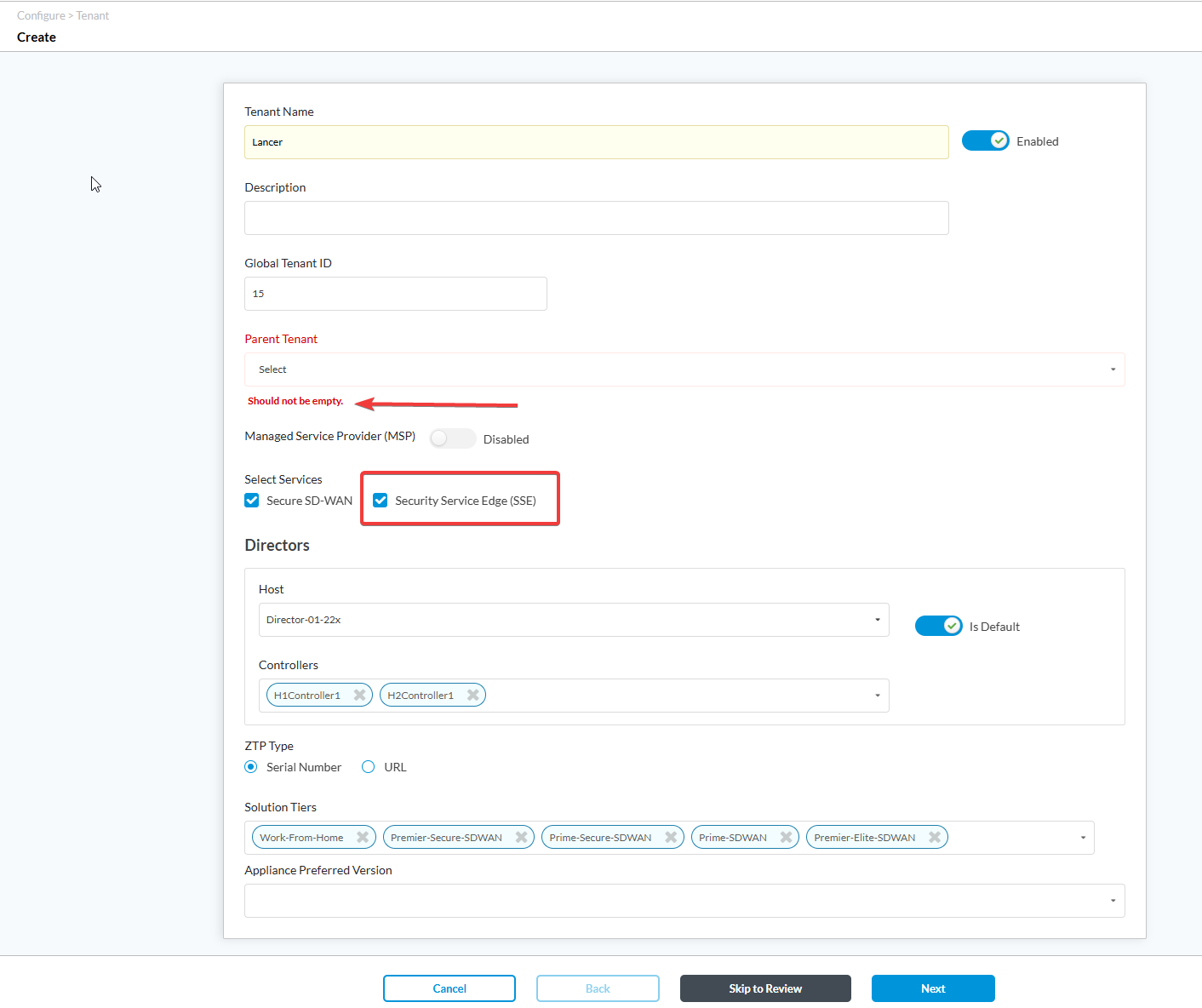
Step 3 — Deploy a Sub-Tenant
Deploy a new Tenant (Sub-Tenant) and select the Parent Tenant. Only Sub-Tenants will have SSE options available.
Note:
- a. You can add a Sub-Tenant either in Director or in Concerto. If added in Director, use the Discover option in Concerto to pull the newly created Sub-Tenant data. The Sub-Tenant created via Director will initially have only SD-WAN features. Once discovered, edit it to include SSE services. However, deployment in Concerto requires completing Steps 4, 5 and 6 first.
- b. If deploying a Sub-Tenant with SSE services via Concerto, Steps 4, 5 and 6 must be completed first. Workaround: Deploy the Sub-Tenant with SD-WAN features enabled, complete Steps 4, 5 and 6, then edit the tenant to include SSE and discard SD-WAN if not needed, and publish.
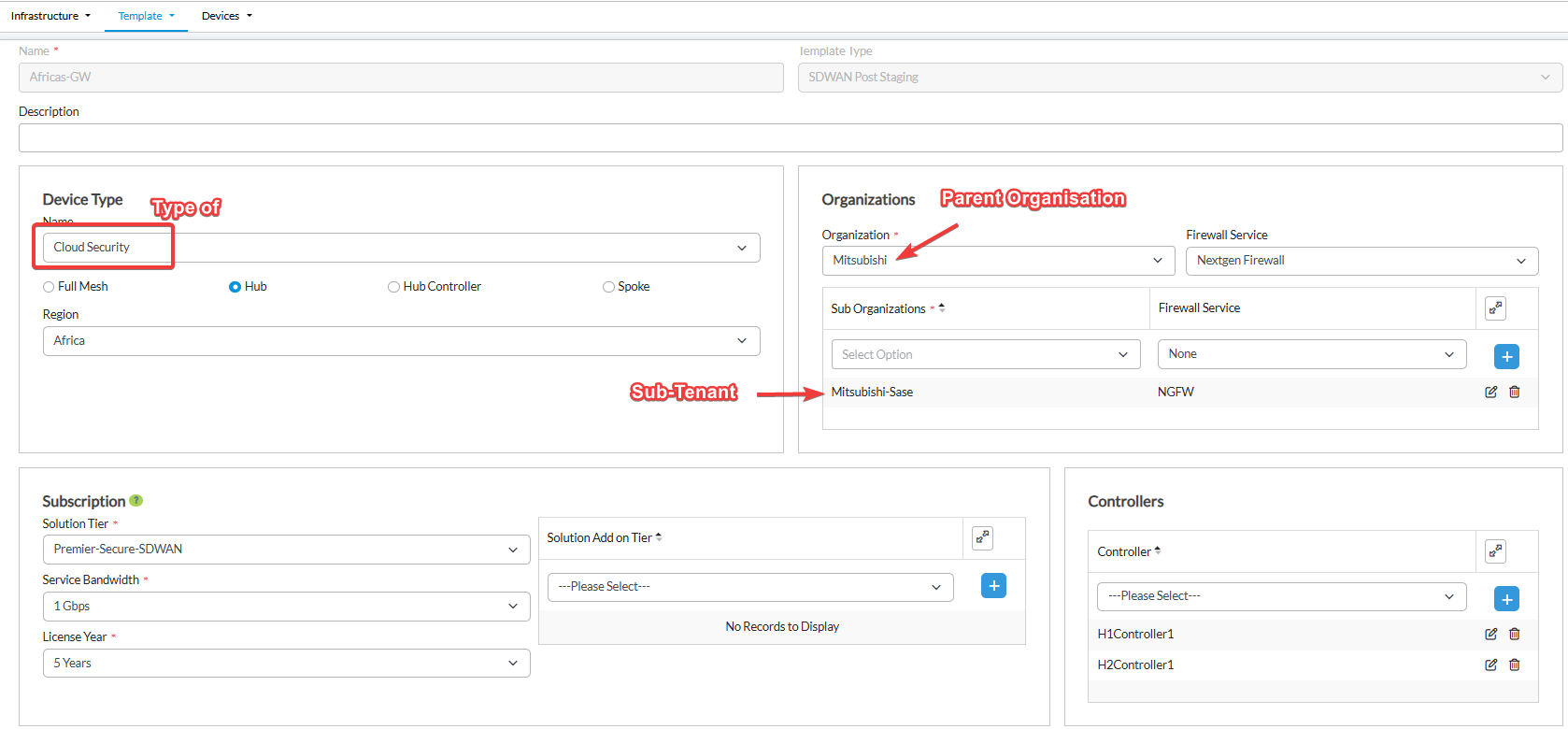
Step 4 — Deploy a Cloud Security Gateway
Once the Sub-Tenant is deployed, add a device (Full-Mesh/Hub/Hub-Controller) with device type set to "Cloud Security" so that the device acts as an SSE gateway. As of now, the Gateway cannot be deployed directly from Concerto — use Director to deploy.
Note:
- a. If the Gateway is deployed as Full-Mesh, it will be tagged to the Default-Region by default. You can change this in Concerto via Tenant → Deploy → Regions.
- b. If the Gateway is deployed as Hub/HCN, the region must be added in Director first — the same information will carry over to Concerto.
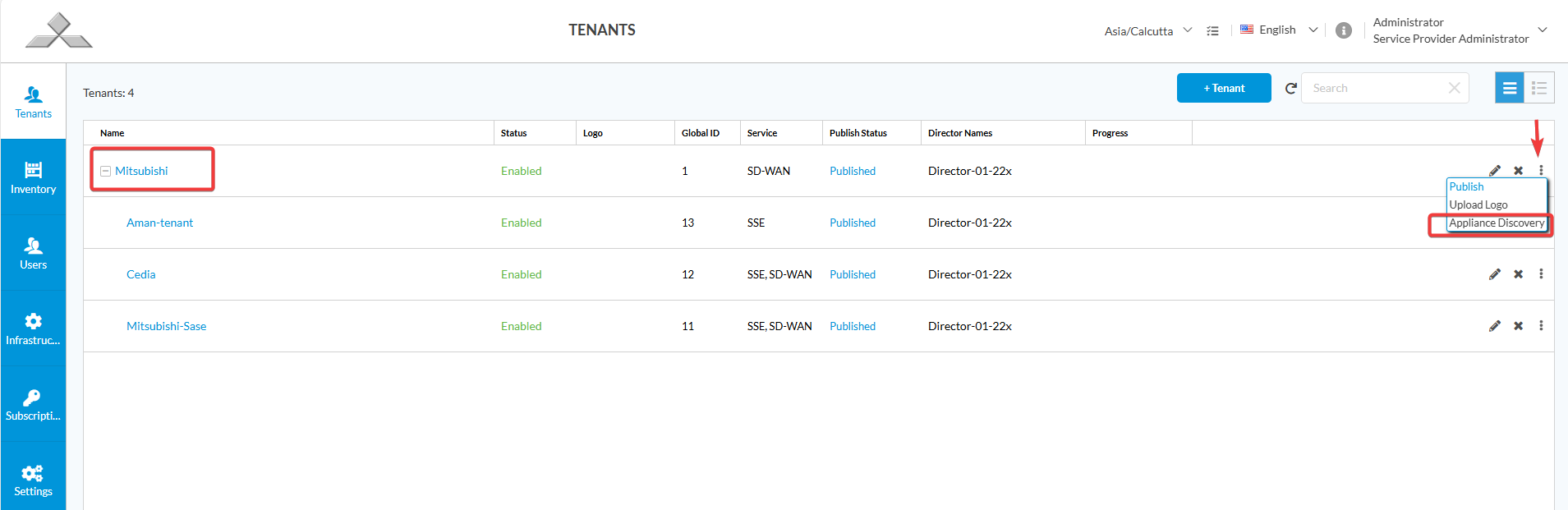
Step 5 — Discover the Gateway in Concerto
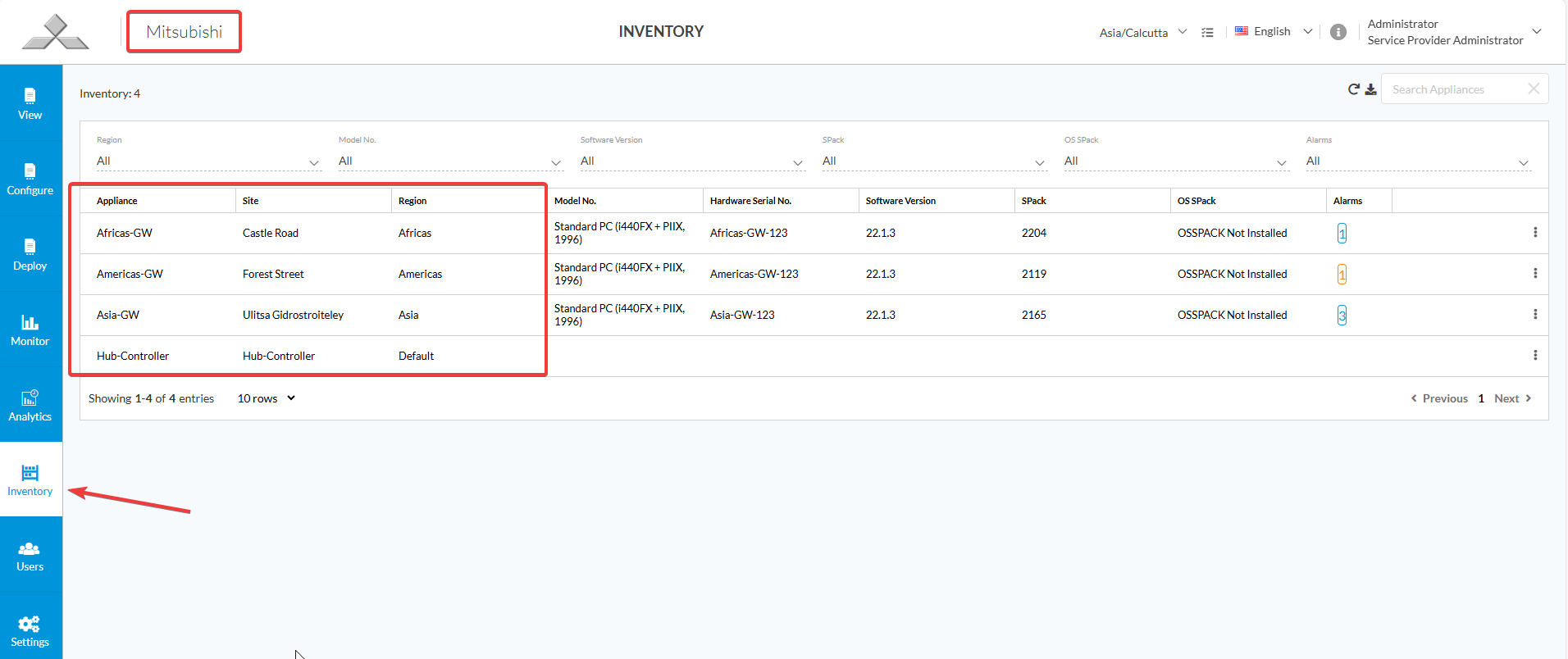
Deploy the device and perform Appliance Discovery at the tenant level so that the added device gets synced to Concerto.
Note: Device deploy is mandatory. Without it, the device will not appear under "Available Regions" in Step 6.
Step 6 — Enable SSE on the Sub-Tenant
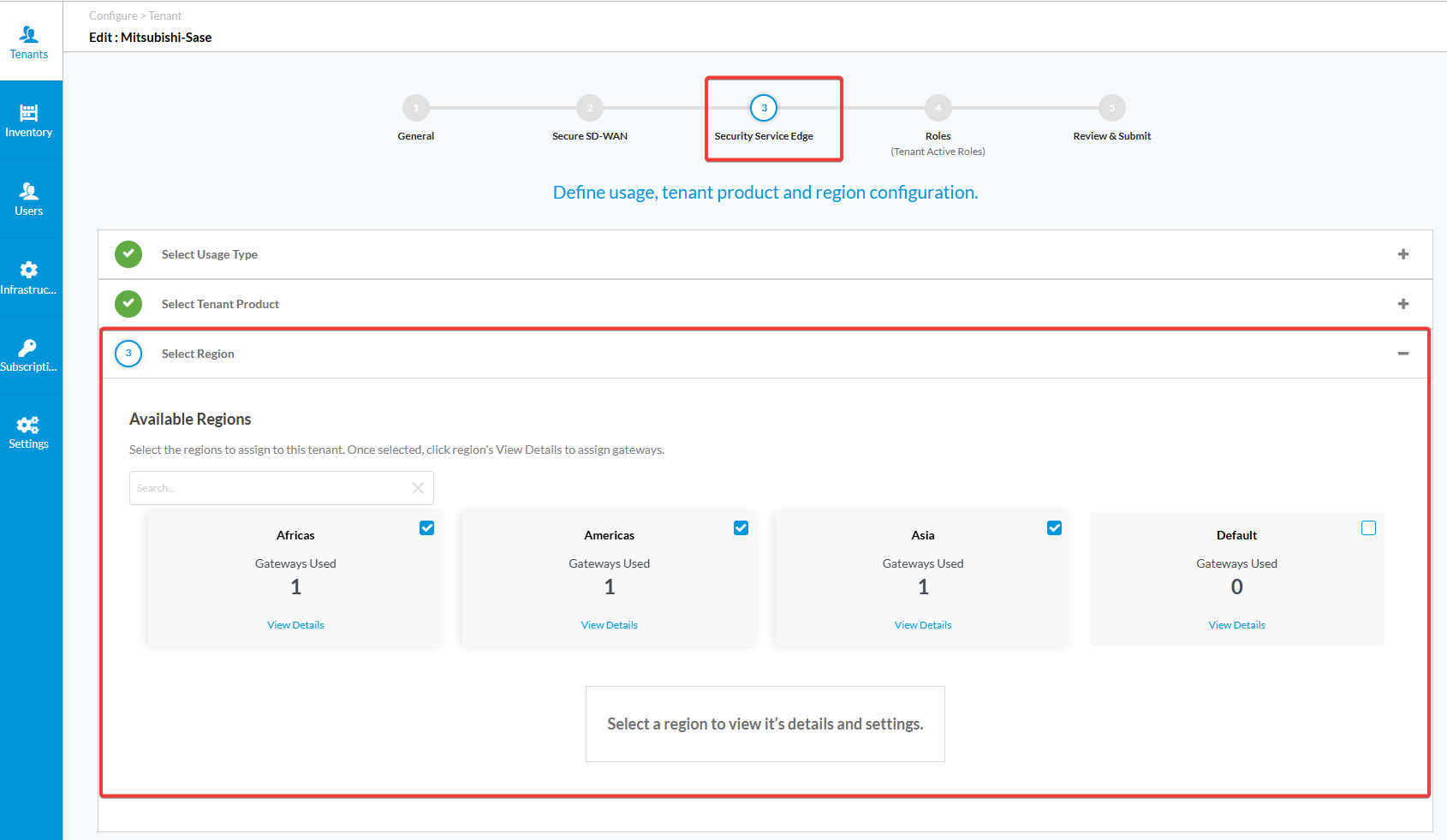
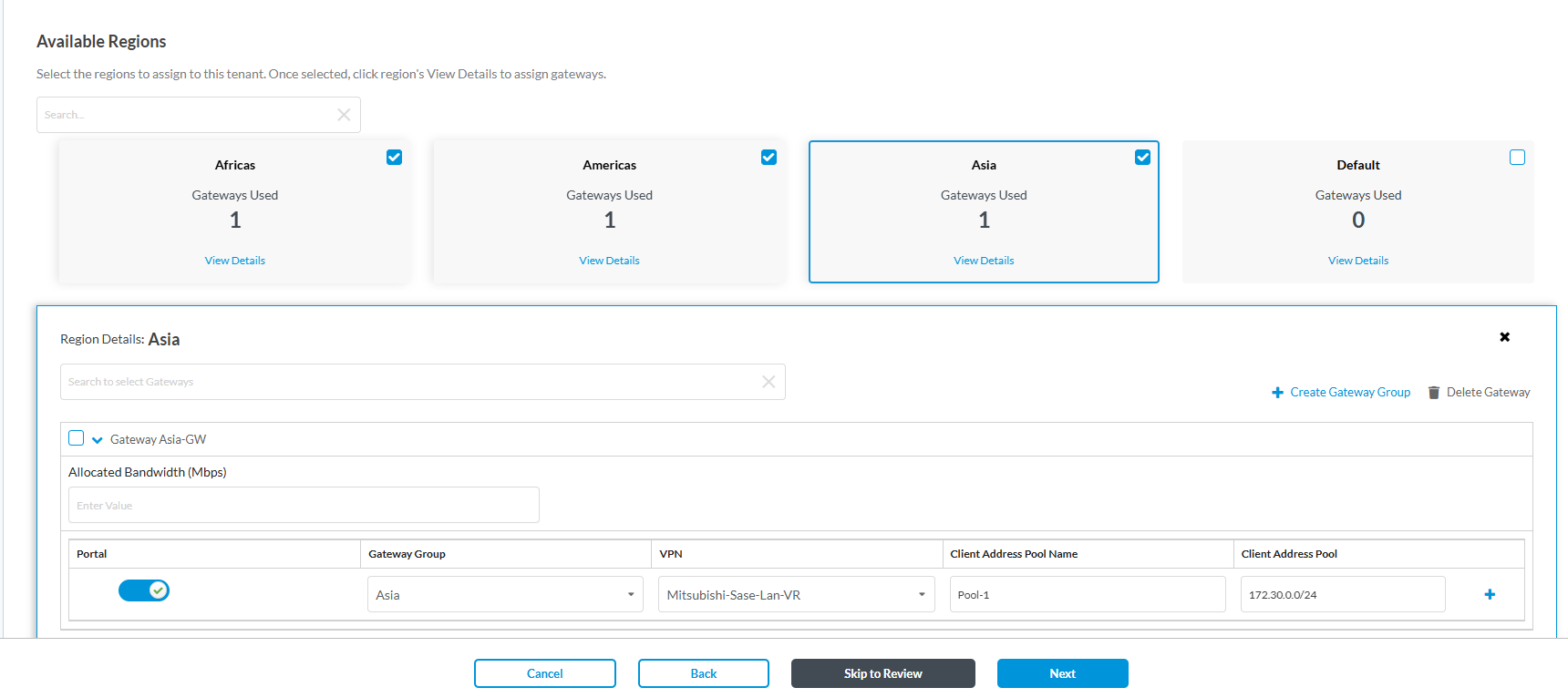
Once Steps 4 and 5 are completed, edit the tenant in Concerto to include SSE services. Fill in the required Usage Type, Tenant Product and at the Select Region, select the Gateways. Without performing Steps 4 and 5, the Gateway will not be visible in Concerto Regions. Select the Gateway and add the required address pool for the clients.
Step 7 — Verify SSE Tabs
After completing the above steps, the SSE tabs will be visible in Concerto.
Step 8 — Configure SASE on the Gateway
Add the required SASE configuration under the Gateway in Director.