Problem: How to configure LTE as True cold standby link
Solution: Configuring LTE as a true standby link through the Cold Standby feature helps set the LTE in passive mode until physical links are UP.
Follow this process to configure LTE as a true standby link:
- Create a monitor for the primary WAN circuit.
- Create a monitor-group to check the status of the primary links.
- Associate the monitor group to the LTE interface as a standby.
Create a Monitor for Primary WAN
To create a primary WAN interface:
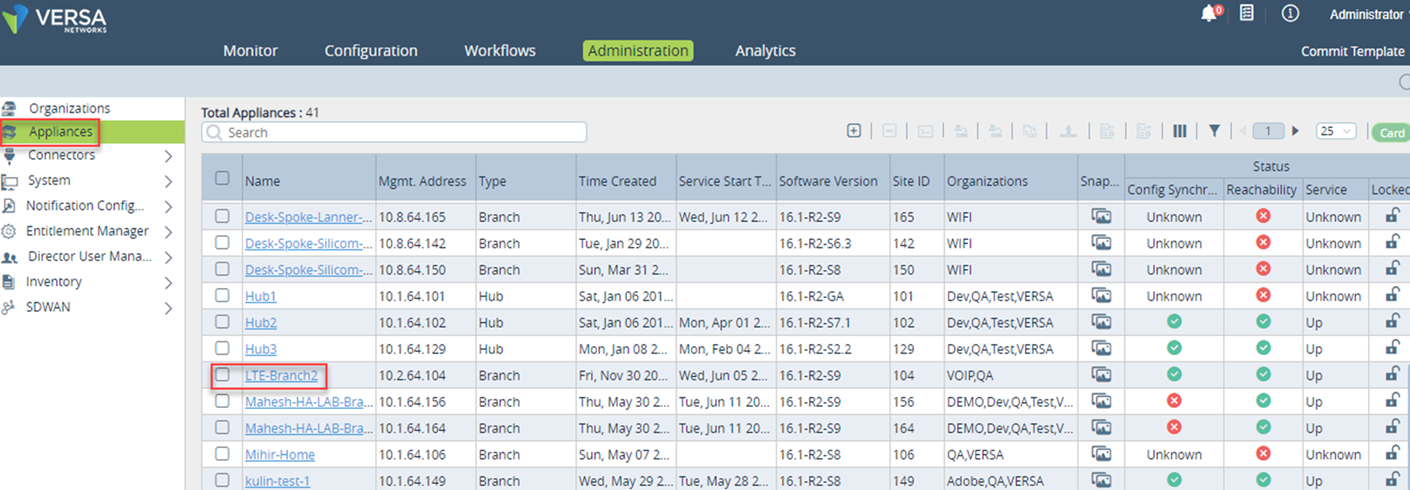
- In the Versa Director context, select Administration > Appliances and select an appliance (LTE-Branch2) from the dashboard.
- In the appliance context (LTE-Branch2), go to configuration > interfaces and click the + button to create an interface.
For this configuration, vni-0/00 is configured as the primary link.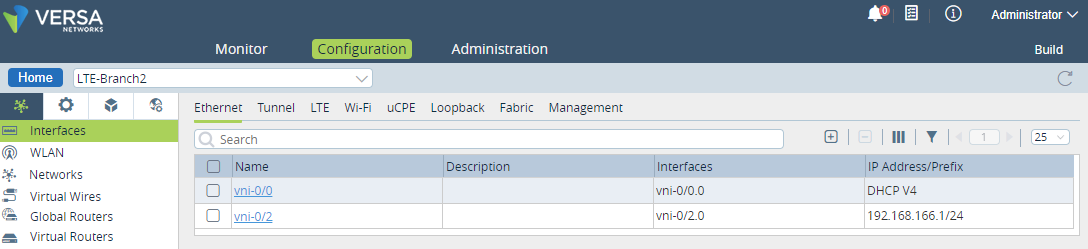
- In the appliance context (LTE-Branch2), select Configuration > IP-SLA > Monitor and click + to create a monitor for the primary WAN interface. This opens the Add IP-SLA Monitor window.
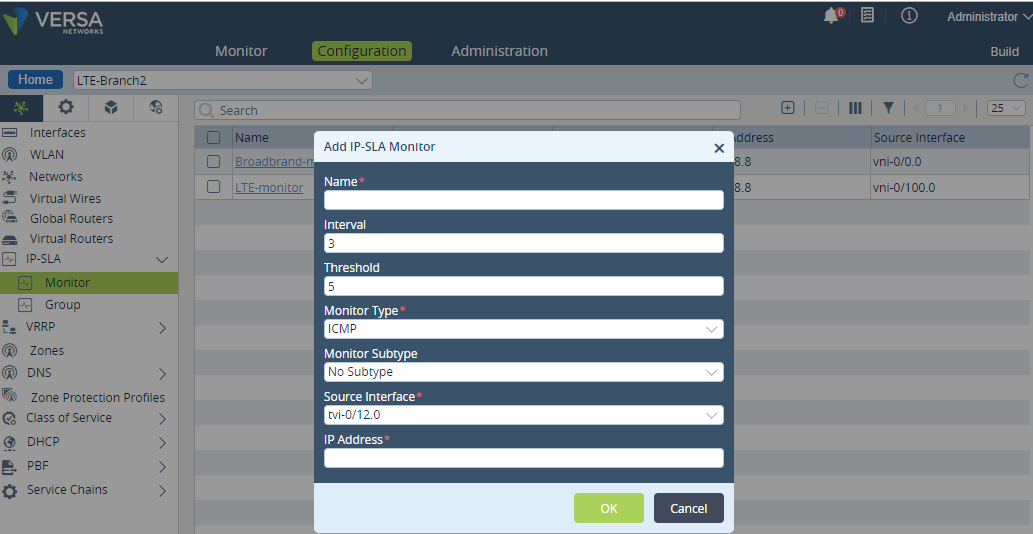
- Enter these details in the Add IP-SLA Monitorwindow:
Field Description Name Specify the name (Broadband-monitor) of the monitoring object. Interval Specify the interval frequency (in seconds) at which the ICMP packets are sent to the IP address. The default is set to 3 seconds. Threshold Specify the count of ICMP packets sent to the IP address. If the IP address does not respond after this count, the Monitor object is marked as down.
The default is set to 5 counts.Monitor Type Select the type of packets sent to the IP address. Currently, Versa supports only ICMP type. Monitor Subtype Select the subtype for the monitor. These are the options: - Layer 2 loopback type
- no subtype
Source Interface Select the source interface through which the probe packets are sent. The routing instance that the source-interface belongs to, is the target routing instance for the probe packets. IP Address Specify the IP address for monitoring. - Click OK.
Note : When the monitored IP becomes reachable again, after Interval × Threshold successful probes, the monitor is marked Up, traffic shifts back to the primary link, and the standby interface transitions down.
Create Monitor Group to Check Status of Primary Links
To create a monitor group and add the monitor object and verify its status:
NOTE: For this configuration example, only a single monitor object is created.
- In the appliance context (LTE-Branch2), select Configuration > IP-SLA > Group and click + to create a monitor group. This opens the Add IP-SLA Monitor Group window.
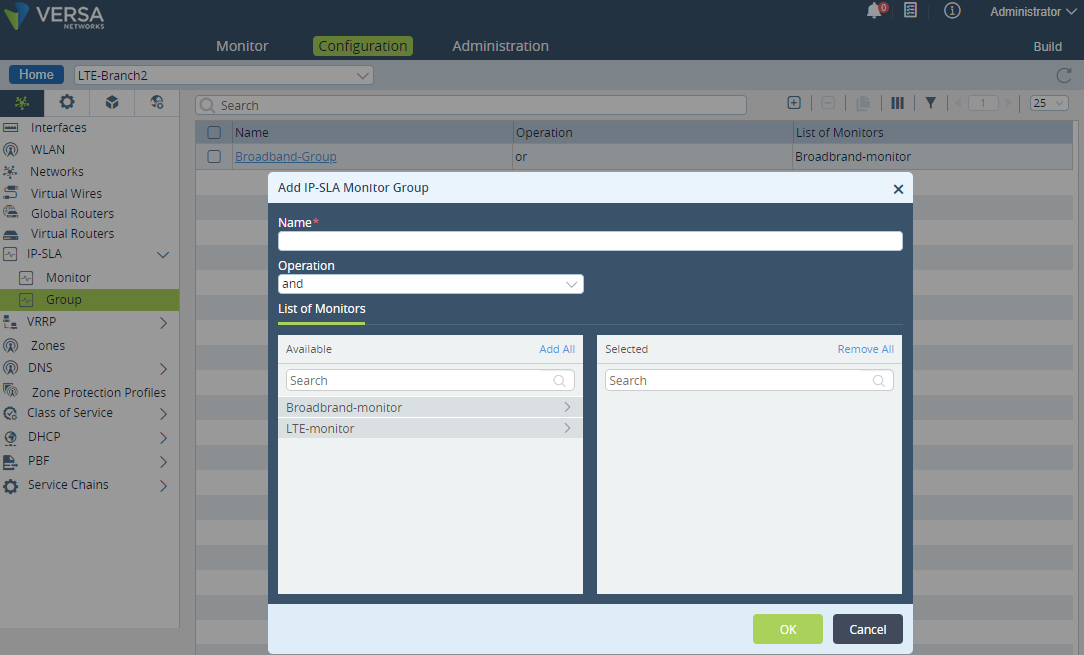
Comment Add screen shot
- Enter the following details in the Add IP-SLA Monitor Group window:
Field Description Name Specify the name (Broadband-Group) of the monitor group. Operation Select the boolean value between "and" and "or". List of Monitors Available Displays the list of available monitors for this appliance. Select and click on the monitor that you want to add to the group (Broadband-Group). Selected Displays the monitor (Broadband-monitor) added to the monitor group. - Click OK.
Please note: When there is only 1 DIA/Broadband link and 1 LTE, the monitor-Group will only comprise only 1 Transport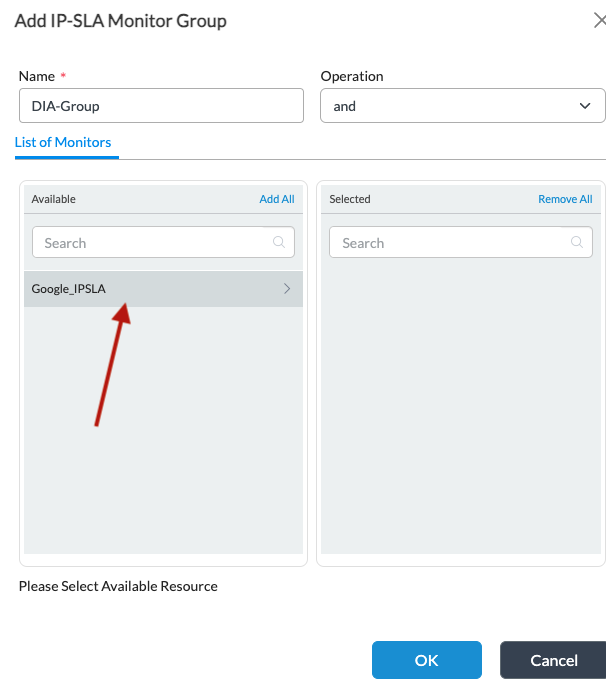
Associate Monitor Group to the LTE Interface as Standby
In this section, we associate the monitor group (Broadband-Group) to an LTE interface as the standby option with the match state configured as "down".
To configure the use case scenario explained above:
- In the appliance context (LTE-Branch2), select Configuration > Interfaces and select the LTE link (vni-0/100). This opens the Edit Ethernet Interface window.
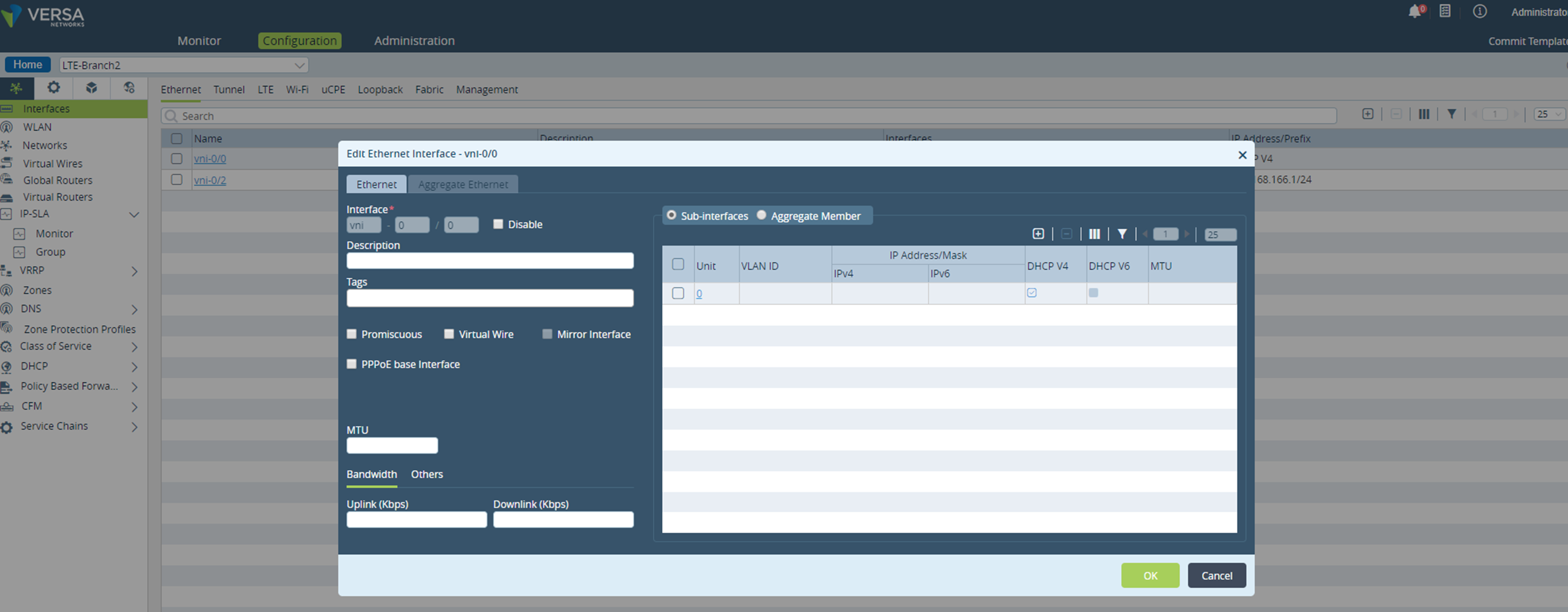
- Select the Sub-interfaces option in the Edit Ethernet Interface window Select the Standby tab in the Add Sub-Interface window and perform these configurations.
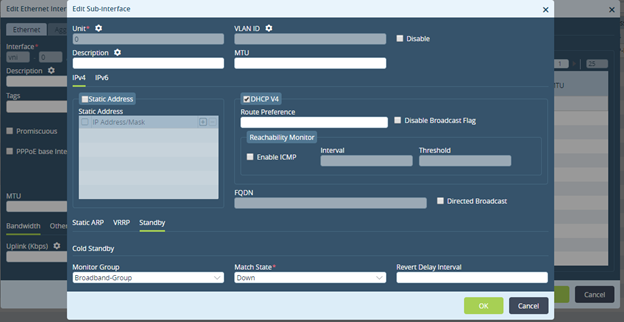
Field Description Monitor-Group Select the monitor group (Broadband-Group). Match State Select "down" as the match state for the monitor group. - Click OK.
Verify the Interface Status (GUI)
- Associate the monitor group to the LTE interface as the standby option with match state as down.
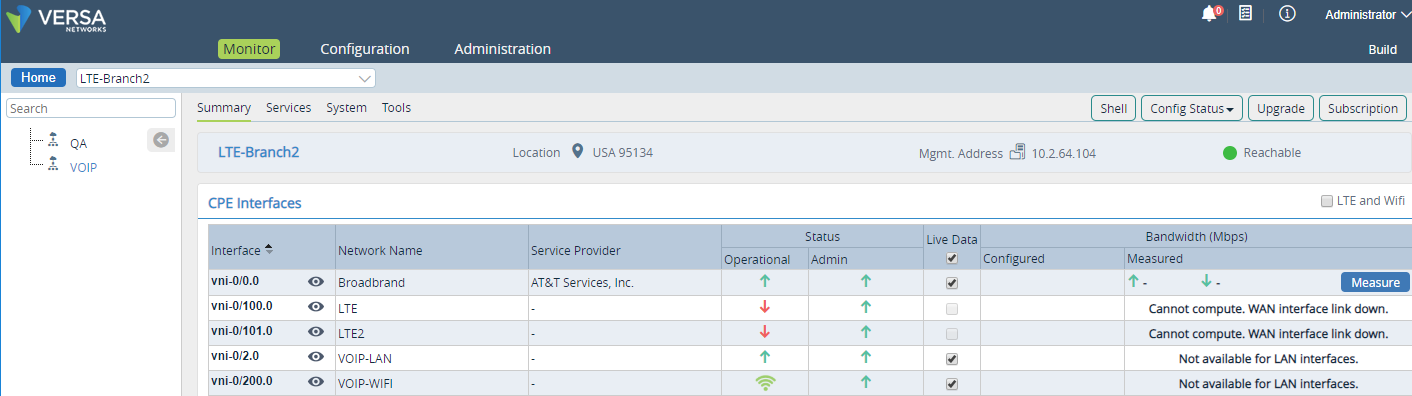
In the appliance (LTE-Branch2) context, select Monitor to view the LTE-Branch2 dashboard.
If all the primary links are UP, the backup LTE interface shows the DOWN status; and if the primary links are down, then the backup LTE link status is shown as UP.