The following article guides you through steps on what to do when VOS boots through Accton Diagnostic! (DIAG mode) instead of the regular boot option for VOS.
Following is applicable to CSG Models: CSG3XX, CSG7XX, CSG1300, CSG1500, CSG2500, CSG5000
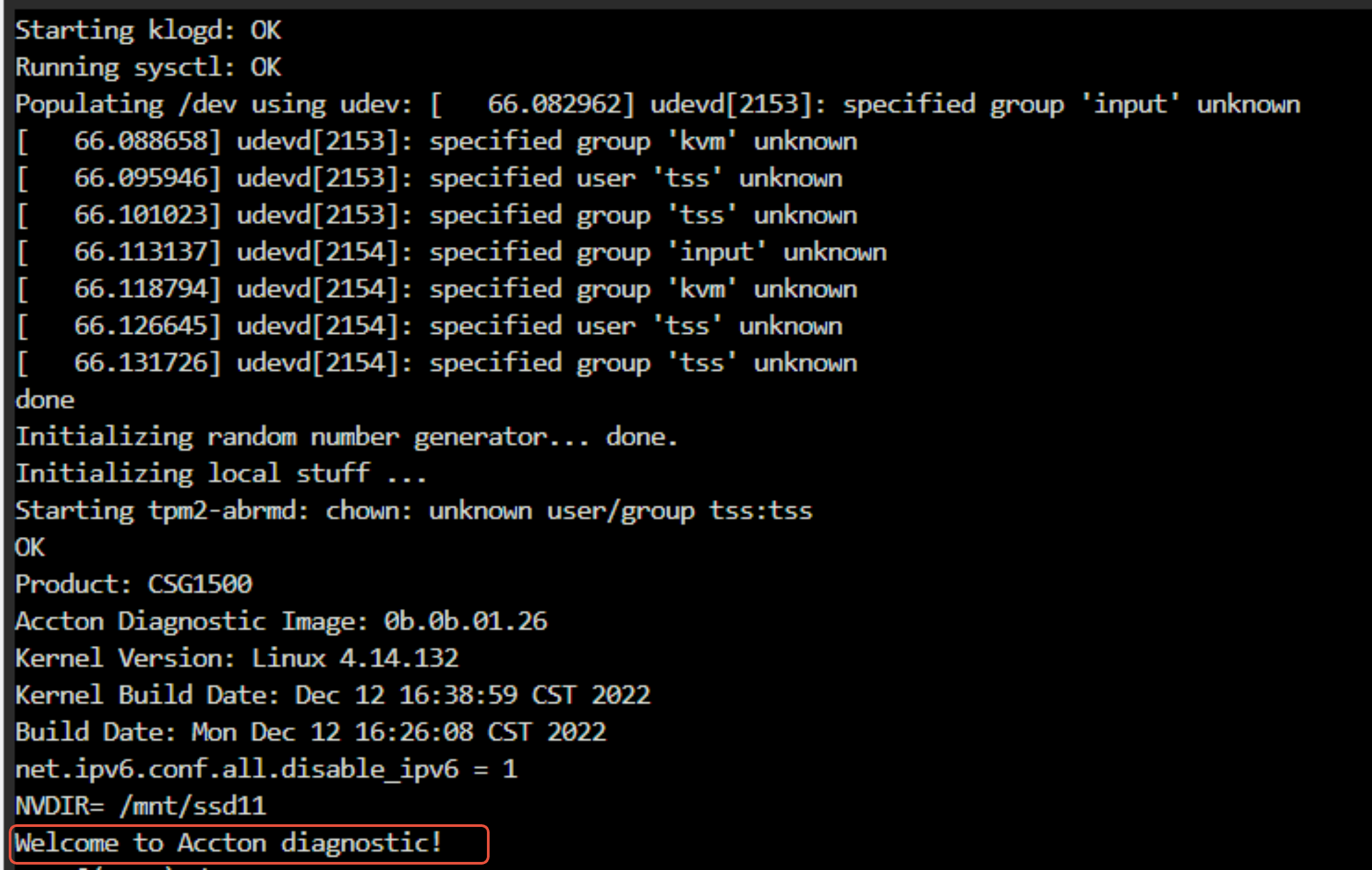
The appliance usually comes with two HDD/SSD
1) For Installing VOS
2) Diag for Hardware troubleshooting
If the appliance is booting through DIAG mode then power cycle the appliance, go to the BIOS menu > Boot option
Make sure HDD/SSD is getting detected in the below window
How to enter into BIOS
- Connect your laptop to the Versa appliance using a console cable.
- When the appliance is booting up, press the Esc/Del key to interrupt the boot process and enter BIOS mode.
- If you don't get the Esc/Del option during boot up, or miss it, power cycle or reboot the appliance to see the prompt again to enter into BIOS.
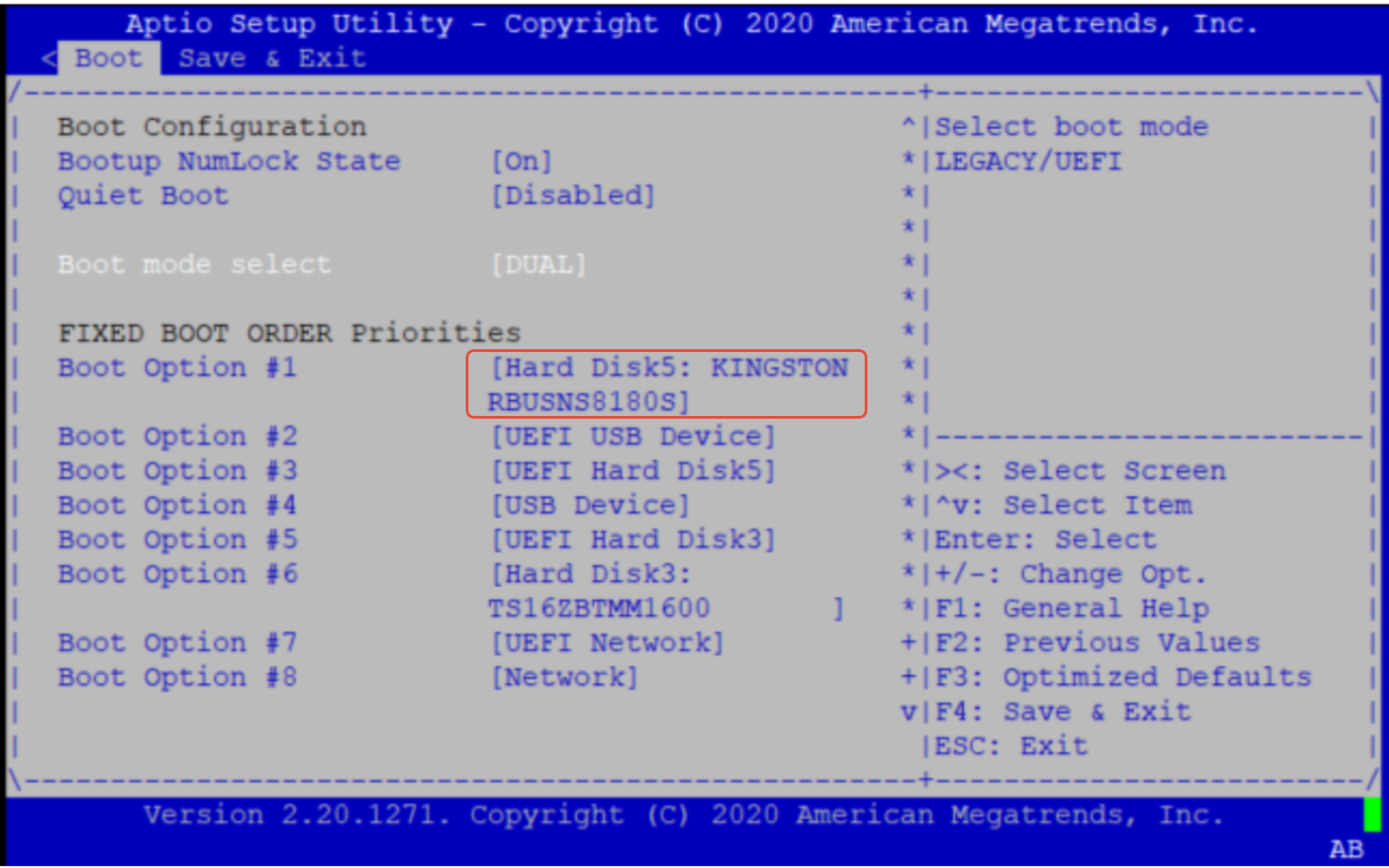
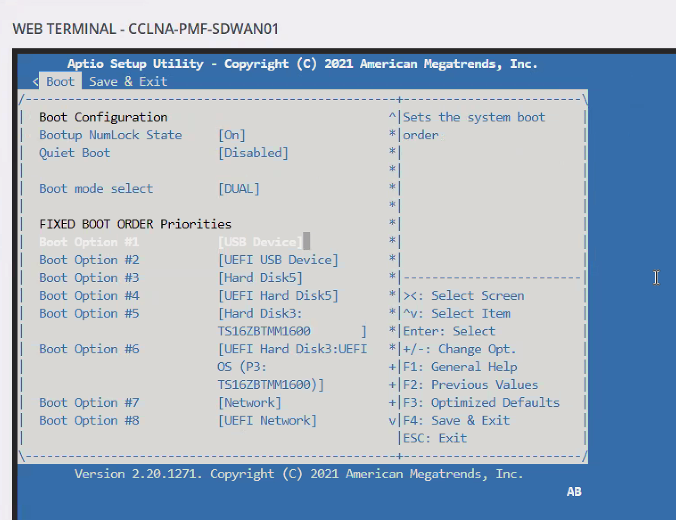
If the HDD/SSD is not getting detected then it means an issue with the HDD/SSD
Eg for such cases
In the below image, we are not able to detect Hard Disk 5 but only able to see Hard Disk 3
In this case, you can try doing the below and check if this helps
Option 1:
Go to Save & Exit
Select restore default => then select Save and reset
The system system will reboot. Then, go back into bios and check if it's detected in both the Boot page and Save & Exit page
If option 1 doesn't work then do option 2
Option 2:
Power cycle the box once and check again if it's detected after the power cycle (Remove all power cords => wait ~ 1min => plug-in power cords)
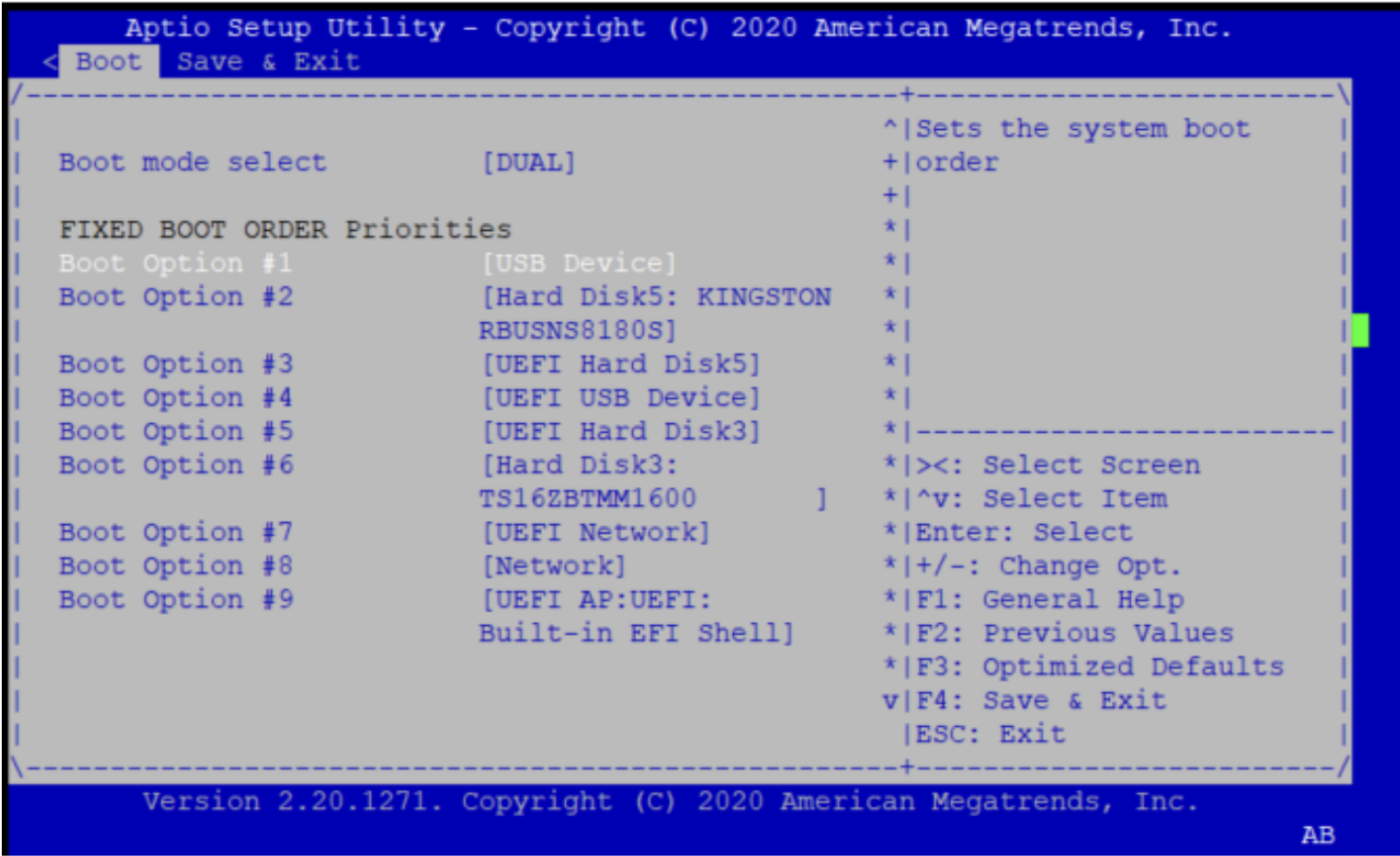
- If the HDD/SSD is getting detected upon power cycle then make sure HDD/SSD is getting selected as Boot Option 1 or 2.
- If it is selected at 2 and USB is selected at boot option 1 then make sure USB is not inserted, so it can boot correctly through HDD/SSD
- If the HDD/SSD is getting detected and still it is not booting up properly then do USB ISO Installation following the document: https://docs.versa-networks.com/Getting_Started/Deployment_and_Initial_Configuration/Branch_Deployment/Installation/Install_on_Bare_Metal
If HDD/SSD is still not getting detected then please collect the following and share it with Versa Support at support@versa-networks.com to confirm if there is any issue with Hardware.
If the VOS is not getting loaded and it is logging through Diag mode then collect the following from shell
$ fdisk -l
$ dmidecode -t 1
$ dmesg | grep -i ata
$ dmesg | grep -i error
$ df -kh
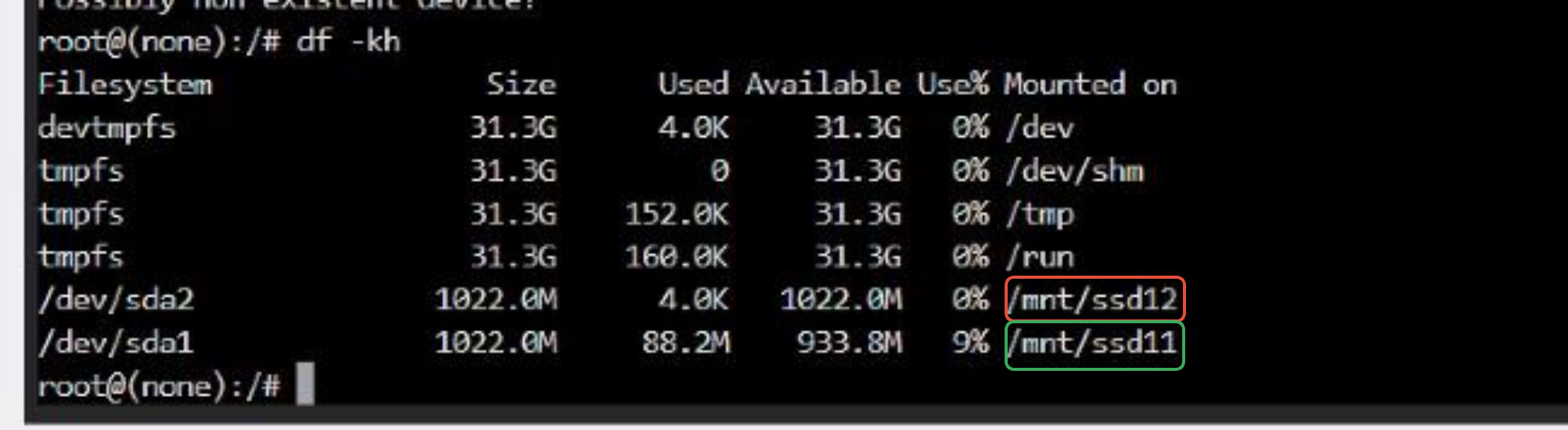
$ ls -l /mnt/ssd12/ <-- ssdx obtained from previous output
$ ls -l /mnt/ssd11/ <-- ssdx obtained from previous output
$ smartctl -a /dev/sda