Table of Contents 1. Purpose 2. Troubleshooting Scenarios 2.1 Scenario 1 – Verify URL Filtering Profile and Policy Configuration 2.2 Scenario 2 – Cloud Lookup Statistics 2.3 Scenario 3 – URL in User-Defined Category Still Blocked 3. Contact Support 4. Frequently Asked Questions |
1. Purpose
This document describes how to troubleshoot common issues related to URL Filtering on Versa FlexVNF. It covers profile validation, policy attachment, statistics collection, debug enablement, and cloud lookup behavior.
For a URL Filtering profile, a browsed URL is evaluated in the following order of precedence:
URL Evaluation Sequence a) Blacklist b) Whitelist c) Category and Reputation When multiple actions match, the action with the highest severity takes precedence. In a tie between a custom category and a user-defined category, the action with the highest severity is also preferred. |
2. Troubleshooting Scenarios
2.1 Scenario 1 – Verify URL Filtering Profile and Policy Configuration
Verify that a URL Filtering profile is configured correctly to block and allow certain predefined categories.
▶ Step 1: Review the URL Filtering profile configuration
In this example, a URL Filtering profile has been created to allow only shopping websites; all other categories are set to block.
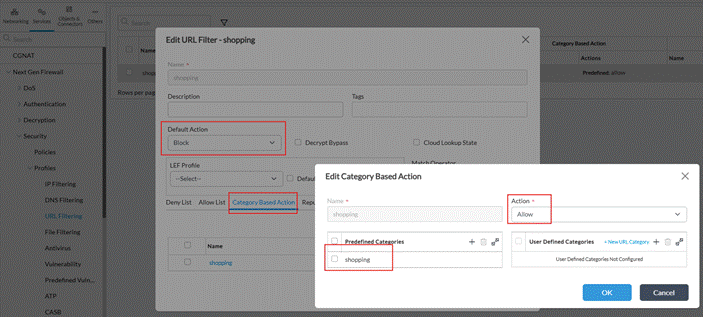
Figure 1 – URL Filtering profile allowing only the "shopping" category
▶ Step 2: Verify that the website falls under the expected category
To confirm the category of a URL, use the Look Up URL feature in the Director GUI or the CLI lookup command. In this example, www.amazon.com should fall under the "shopping" category and www.google.com should fall under a different category (e.g., search_engines).
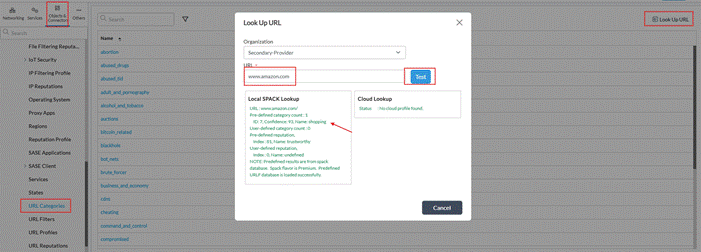
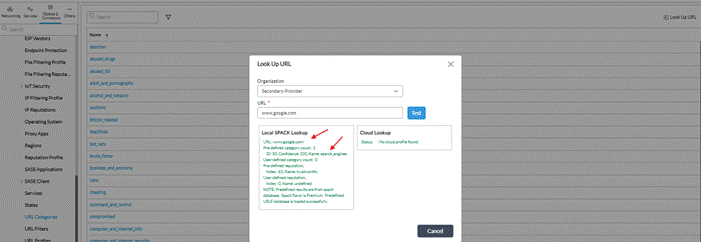
Figure 2 – URL category lookup results for amazon.com and google.com
Result: www.amazon.com falls under the shopping category; www.google.com falls under the search_engines category. Based on the profile configuration, access to www.amazon.com should be permitted and www.google.com should be blocked.
▶ Step 3: Confirm that the URL Filtering profile is correctly attached to the security policy
Verify the security policy (Enforce tab) to ensure the correct URL Filtering profile is referenced. In the example below, traffic from LAN-zone hitting the FlexVNF is evaluated by the allow_shopping access policy, which has the URL Filtering profile attached.
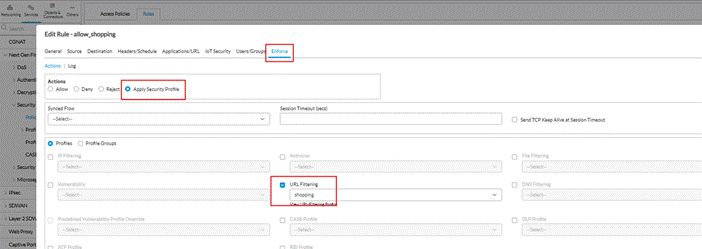
Figure 3 – Security policy with URL Filtering profile attached
▶ Step 4: Collect statistics to confirm the expected policies are being hit
Clear the URL Filtering and access policy statistics before running the test, then browse a target URL and review the counters.
Clear and view URL Filtering statistics
# Clear URL Filtering profile statistics request clear statistics security urlf-profile org org-name <tenant-name> profile-name <urlf-profile-name>
# View URL Filtering profile statistics show orgs org-services <tenant-name> security profiles url-filtering user-defined statistics shopping |
Clear and view access policy statistics
# Clear access policy statistics request clear statistics security access-policy org org-name <tenant-name> rule-name <rule-name>
# View access policy statistics show orgs org-services <tenant-name> security access-policies rules access-policy-stats |
Browse a shopping website (e.g., amazon.com) and then review the counters: hit count, total_url_category_actions, and total_block_actions.
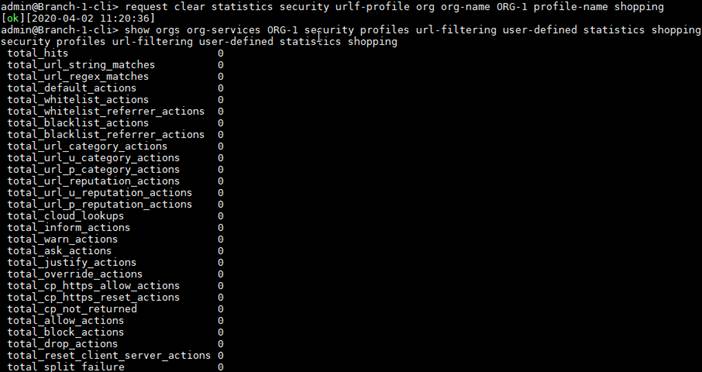
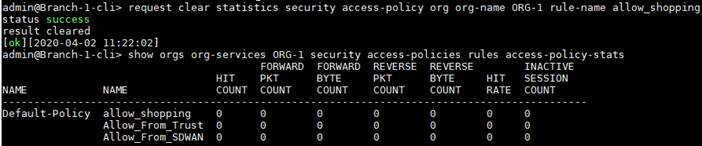
Figure 4 – Access policy and URL Filtering profile hit counters
Key counters to monitor For category-based URL Filtering, focus on the following counters: • total_hits – Total number of URL lookups performed • total_url_category_actions – Actions taken based on URL category • total_url_p_category_actions – Actions taken based on pre-defined categories • total_allow_actions – Total URLs allowed If blacklist, whitelist, or reputation-based actions are configured, verify the corresponding counters are incrementing correctly for traffic hitting the FlexVNF. |
In the example above, the action for the "shopping" category was set to allow, so the total_allow_actions counter should increase.
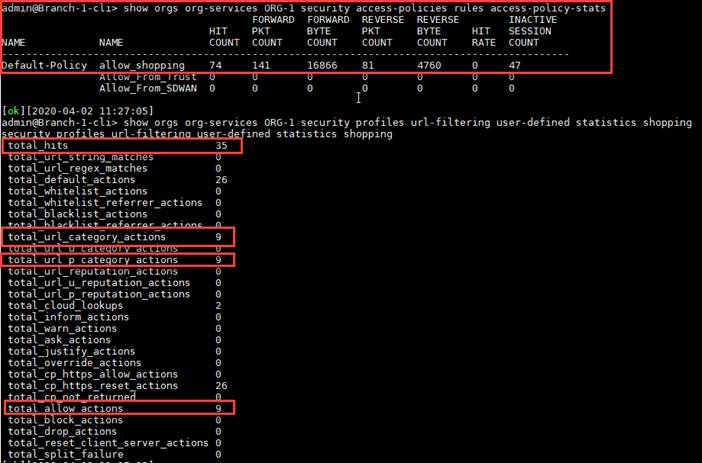
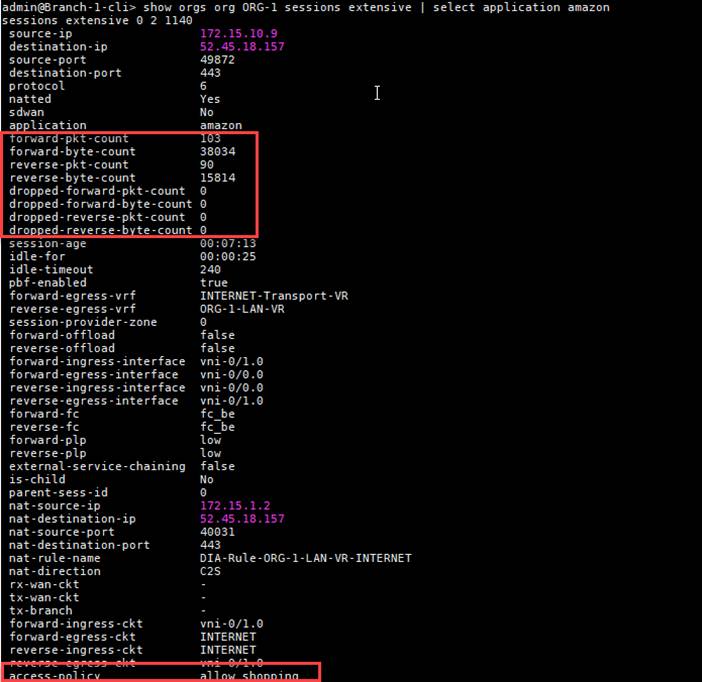
Figure 5 – Session output confirming amazon.com was allowed; the access policy was matched
Now browse www.google.com. After clearing the statistics, the block counters should increase.
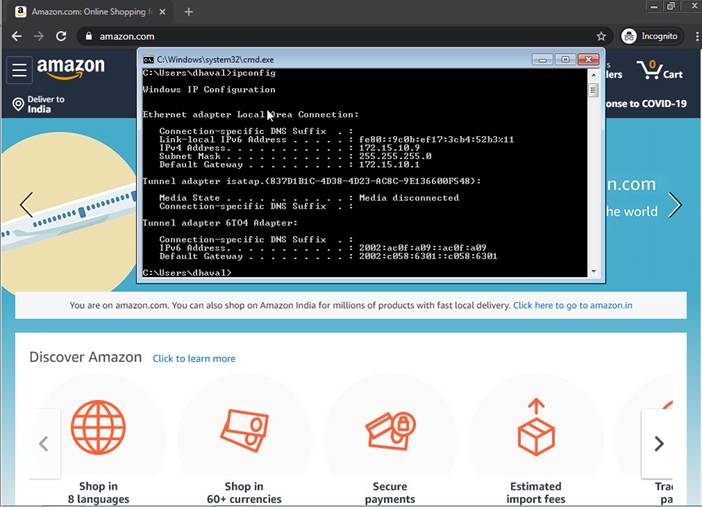
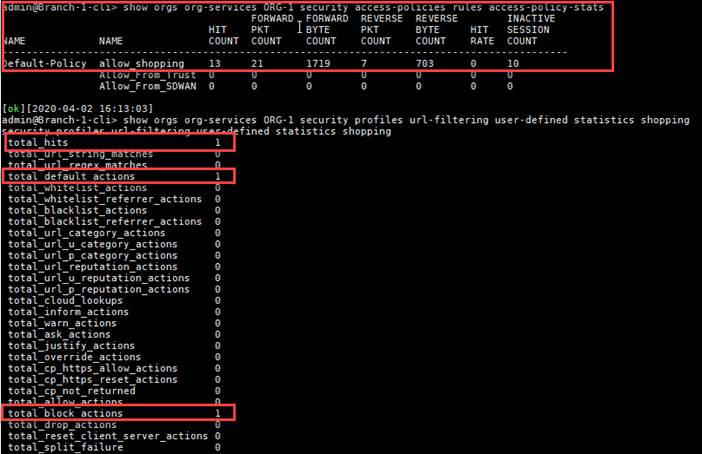
Figure 6 – Block counters incrementing after browsing google.com
Enabling Debugs
If issues persist, the following debugs can be collected. Debugs should only be enabled for troubleshooting and must be deleted immediately after log collection.
Enable packet trace (filter by source/destination IP)
# Forward flow filter request debug session filter-create filter-name forward-flow \ source-prefix <client-IP> destination-prefix <destination-IP> timeout <minutes>
# Reverse flow filter (for DIA traffic with source NAT) request debug session filter-create filter-name reverse-flow \ source-prefix <destination-IP> destination-prefix <NAT-source-IP> timeout <minutes> |
Output is written to: /var/log/versa/versa-pkttrace.log
Enable URL Filtering debug
Log in to the device via SSH and enter shell mode:
vsh allow-cli
# Alternatively, enable via Director: # Appliance > Configuration > Others > System > Configuration > # Subjugation (right panel) > Allow CLI (check this option) |
Switch to CLI mode and enable URL Filtering debug:
config set debug urlf all-flags level all send to file name /var/log/versa/versa-pkttrace.log |
⚠ Important: Monitor CPU usage immediately after enabling the debug. If CPU spikes, disable the debug immediately. |
Disable and delete debugs (run after log collection)
# Disable packet trace request debug session filter-delete all
# Disable URL Filtering debug (from config mode) config delete debug commit |
2.2 Scenario 2 – Cloud Lookup Statistics
If cloud lookup is enabled, use the following commands to verify that the cloud lookup profile is being hit and that counters are incrementing correctly.
▶ Collect cloud lookup statistics
Clear the statistics before browsing the target URL, then review the counters:
# Clear URL Filtering profile statistics request clear statistics security urlf-profile org org-name <org-name> profile-name <urlf-profile-name>
# Clear cloud lookup statistics request clear statistics security urlf-cloud-lookup org org-name <org-name>
# View cloud lookup statistics show orgs org-services <org-name> security url-filtering statistics cloud-lookup |
After browsing the URL, the cloud lookup counters should increment. The example below shows output for synchronous lookup mode. If the mode was set to asynchronous, the async counters would increment instead.
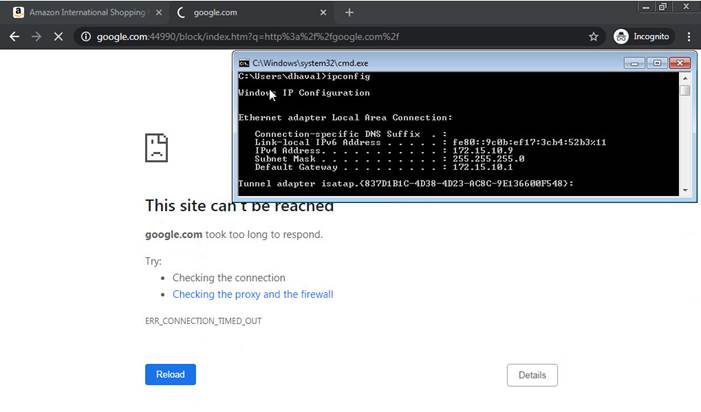
Figure 7 – Cloud lookup counters after URL is browsed (synchronous mode)
2.3 Scenario 3 – URL in User-Defined Category Still Blocked
A user reports that www.msftconnecttest.com is still blocked even though it has been added to a user-defined URL category configured to allow traffic.
▶ Step 1: Review the configuration
Verify the user-defined URL category, URL Filtering profile, and security policy:
# User-defined URL Category admin@HubController1-cli> show configuration orgs org-services Suborg1 \ url-filtering user-defined-url-categories | display set
set orgs org-services Suborg1 url-filtering user-defined-url-categories \ Allow-URL-List url-file url-file-1.csv
# URL Filtering Profile set orgs org-services Suborg1 security profiles url-filtering Allow-URL-Profile cloud-lookup enabled set orgs org-services Suborg1 security profiles url-filtering Allow-URL-Profile default-action predefined block set orgs org-services Suborg1 security profiles url-filtering Allow-URL-Profile blacklist evaluate-referrer true set orgs org-services Suborg1 security profiles url-filtering Allow-URL-Profile whitelist log-enable true set orgs org-services Suborg1 security profiles url-filtering Allow-URL-Profile whitelist evaluate-referrer true set orgs org-services Suborg1 security profiles url-filtering Allow-URL-Profile \ category-action-map url-categories url-categories user-defined [ Allow-URL-List ] set orgs org-services Suborg1 security profiles url-filtering Allow-URL-Profile \ category-action-map url-categories action predefined allow
# Security Policy set orgs org-services Suborg1 security access-policies Default-Policy rules \ Allow-URL-Profile_Policy match source zone zone-list [ LAN1 ] set orgs org-services Suborg1 security access-policies Default-Policy rules \ Allow-URL-Profile_Policy set security-profile url-filtering user-defined Allow-URL-Profile set orgs org-services Suborg1 security access-policies Default-Policy rules \ Allow-URL-Profile_Policy set action allow |
▶ Step 2: Perform a URL Filtering lookup
Run a URL lookup to check whether www.msftconnecttest.com is being recognized under the user-defined category. This can be done via the GUI (as shown in Scenario 1) or via CLI:
admin@HubController1-cli> request orgs org-services Suborg1 url-filtering lookup url www.msftconnecttest.com
lookup_result URL : www.msftconnecttest.com/ All-one-category : 1 Pre-defined category count : 1 ID: 5, Confidence: 93, Name: computer_and_internet_info User-defined category count : 0 <<< Problem: not recognized as user-defined Pre-defined reputation, Index : 81, Name: trustworthy User-defined reputation, Index : 0, Name: undefined NOTE: Predefined results are from spack database. Spack flavor is Premium. Predefined URLF database is loaded successfully. |
Expected output from a correctly configured device:
admin@LAB-DEVICE-2-cli> request orgs org-services Suborg1 url-filtering lookup url www.msftconnecttest.com
lookup_result URL : www.msftconnecttest.com/ All-one-category : 1 Pre-defined category count : 1 ID: 5, Confidence: 93, Name: computer_and_internet_info User-defined category count : 1 ID: 141, Confidence: 100, Name: Allow-URL-List <<< Correct Pre-defined reputation, Index : 81, Name: trustworthy User-defined reputation, Index : 1, Name: trustworthy NOTE: Predefined results are from spack database. Spack flavor is Premium. Predefined URLF database is loaded successfully. |
Since the URL lookup itself does not return the correct user-defined category, packet tracing and URL Filtering debug are not yet needed. Proceed to check whether the URL database compiled successfully.
▶ Step 3: Check the URL database compilation history
admin@HubController1-cli> show orgs org-services Suborg1 url-filtering threat-intel history brief | tab | sort-by id |
admin@HubController1-cli> show orgs org-services Suborg1 url-filtering threat-intel history brief | tab | sort-by id
FULL INCR EXCL URL URL
REGEX REGEX REGEX URL URL REGEX REGEX
TENANT JOB COMPILE VAL SRC DB DB DB STRINGS TIME FEED STRINGS STRINGS ADD DEL
ID ID TIMESTAMP ID STATUS WHEN TYPE TYPE CNT CNT CNT DB CNT TAKEN NAME ADD CNT DEL CNT CNT CNT
-----------------------------------------------------------------------------------------------------------------------------------------------------
1 2 2026-04-07 02:58:33 1 NA Start Pattern Config 0 0 0 0 0.00 -NA- 0 0 1 0
2 2 2026-04-07 02:58:43 1 success End Pattern Config 1 0 0 0 0.00 -NA- 0 0 1 0
3 2 2026-04-18 23:32:03 2 NA Start Pattern Config 1 0 0 0 0.00 -NA- 0 0 8 0
4 2 2026-04-18 23:32:06 2 failed End Pattern Config 1 0 0 0 0.00 -NA- 0 0 8 0
The output shows that Job ID 4 has a Compile Status of "failed". Retrieve the details for this failed entry:
# Replace "4" with the ID where compile status is "failed" admin@HubController1-cli> request orgs org-services Suborg1 url-filtering threat-intel history detail id 4 |
admin@HubController1-cli> request orgs org-services Suborg1 url-filtering threat-intel history detail id 4
status success
result
Threat Intel URL Database History Detail
========================================
ID : 4
Tenant ID : 2
Timestamp : 2026-04-18 23:32:06
Job ID : 2
Compile Status : failed
When : End
Value Type : Pattern
Source Type : Config
Compile Type : full
Full Regex DB Count : 1
Incremental Regex DB Count : 0
Exclude Regex DB Count : 0
Strings DB Count : 0
Full Regex Count : 0
Incremental Regex Count : 0
Exclude Regex Count : 0
Strings Count : 0
Job Strings Added : 0
Job Strings Deleted : 0
Job Regex Added : 8
Job Regex Deleted : 0
Feed Rep-Id : 0
Time Taken : 0.00 seconds
Feed Name : -NA-
Message : ERROR: job: 2, tnt: 2, Error compiling full regular expression [ *.microsoft.com ] at idx 0, (error: Invalid repeat at index 0.)
Figure 9 – Detail output for the failed compilation job
Root cause identified: The error message shows: ERROR: job: 2, tnt: 2, Error compiling full regular expression [ *.microsoft.com ] at idx 0, (error: Invalid repeat at index 0.) The regex pattern *.microsoft.com is invalid. The correct regex pattern should be .*microsoft.com. |
▶ Step 4: Inspect the URL database content
Since the URLs are added via a URL file, use the following commands in shell mode to view the compiled URL entries:
# Enter shell mode and connect to vsmd vsh connect vsmd
# Enable async thread data debug (required for the following commands) vsm-vcsn0> test urlf config async-thread-data debug enable async thread data debug enabled
# Show all URL patterns for a given tenant (replace 2 with the correct tenant ID) # Tenant ID can be retrieved with: show vsf tenant all brief vsm-vcsn0> show urlf config detail async-thread-data regex-tree 2 |
vsm-vcsn0> show urlf config detail async-thread-data regex-tree 2 (here 2 is the tenant ID, you can get correct tenant ID from command “show vsf tenant all brief”)
Total nodes: 9
| URL
-------------------------------------------------------------------
| *.microsoft.com
| .*camsonline.*
| .*microsoft.net.*
| .*microsoft365.*
| .*microsoft365.com.*
| .*microsoftonline.com.*
| .*msftconnecttest.com.*
| login.microsoft.com
| www.msftconnecttest.com
Figure 10 – Regex tree showing all URL patterns; note the invalid *.microsoft.com entry
The invalid pattern *.microsoft.com is visible in the regex tree. To inspect a specific user-defined category:
vsm-vcsn0> show urlf config detail url-category user-defined Suborg1-2 Suborg1-2.18 Allow-URL-List |
vsm-vcsn0> show urlf config detail url-category user-defined Suborg1-2 Suborg1-2.18 Allow-URL-List
User defined URL Category Name : Allow-URL-List
User defined URL Category ID : 132
Number of URL strings to match : 0
Number of URL patterns to match : 8
-------------------------------------------------------------------------
URL Match Type URL Reputation URL Pattern/String
-------------------------------------------------------------------------
regex 1 *.microsoft.com <<<<<<<<<<<<<<<<<<<<<<<<<<
regex 1 .*microsoft.net.*
regex 1 .*microsoft365.*
regex 1 .*microsoft365.com.*
regex 1 .*microsoftonline.com.*
regex 1 .*msftconnecttest.com.*
regex 1 login.microsoft.com
regex 1 www.msftconnecttest.com
Figure 11 – URL category detail showing the invalid regex entry
View the datapath URL lookup database to confirm the last compile error:
# Replace 2 with the correct tenant ID vsm-vcsn0> show urlf datapath url-lookup-db details 2 (here 2 is the tenant ID) Last compile message: job: 2, ERROR: job: 2, tnt: 2, Error compiling full regular expression [ *.microsoft.com ] at idx 0, (error: Invalid repeat at index 0.)
----------------------------------
Total URLs : 9 (Fixed: 0, Regex: 9) Total threat intel URLs : 0 (tenant: 0, global: 0) Total incremental include regex urls : 0 Total incremental exclude regex urls : 0 Incremental threshold : 1000
----------------------------------
Active slot index : 0
+-----------------------------+ | slot index : 0 | update timestamp : 2026-04-07 02:58:33
| db ref_cnt : 2 | strings db : - | strings count (unique) : 0 | strings db ref_cnt : 0 | regex db, | full hsdb : Exist | full hsdb scratch : Allocated | full hsdb count : 1 | full hsdb ref count : 1 | | include hsdb : - | include hsdb scratch : - | include hsdb count : 0 | include hsdb ref count : 0 | | exclude hsdb : - | exclude hsdb scratch : - | exclude hsdb count : 0 | exclude hsdb ref count : 0 +-----------------------------+
| slot index : 1 | update timestamp : 2026-04-07 02:58:12
+-----------------------------+ |
# Disable the debug after inspection vsm-vcsn0> test urlf config async-thread-data debug disable async thread data debug disabled |
▶ Resolution: Fix the invalid regex pattern and verify
Correct the URL file by changing *.microsoft.com to .*microsoft.com, then re-apply the configuration. Verify the compilation history again:
admin@HubController1-cli> show orgs org-services Suborg1 url-filtering threat-intel history brief | tab | sort-by id |
admin@HubController1-cli> show orgs org-services Suborg1 url-filtering threat-intel history brief | tab | sort-by id
FULL INCR EXCL URL URL
REGEX REGEX REGEX URL URL REGEX REGEX
TENANT JOB COMPILE VAL SRC DB DB DB STRINGS TIME FEED STRINGS STRINGS ADD DEL
ID ID TIMESTAMP ID STATUS WHEN TYPE TYPE CNT CNT CNT DB CNT TAKEN NAME ADD CNT DEL CNT CNT CNT
-----------------------------------------------------------------------------------------------------------------------------------------------------
1 2 2026-04-07 02:58:33 1 NA Start Pattern Config 0 0 0 0 0.00 -NA- 0 0 1 0
2 2 2026-04-07 02:58:43 1 success End Pattern Config 1 0 0 0 0.00 -NA- 0 0 1 0
3 2 2026-04-18 23:32:03 2 NA Start Pattern Config 1 0 0 0 0.00 -NA- 0 0 8 0
4 2 2026-04-18 23:32:06 2 failed End Pattern Config 1 0 0 0 0.00 -NA- 0 0 8 0
5 2 2026-04-19 00:05:19 3 NA Start Pattern Config 1 0 0 0 0.00 -NA- 0 0 1 1
6 2 2026-04-19 00:05:22 3 success End Pattern Config 9 0 0 0 0.00 -NA- 0 0 1 1
Figure 12 – Compilation history after fixing the regex; Job ID 6 shows success
Re-run the URL lookup to confirm www.msftconnecttest.com is now recognized under the Allow-URL-List user-defined category:
admin@HubController1-cli> request orgs org-services Suborg1 url-filtering lookup url www.msftconnecttest.com
lookup_result URL : www.msftconnecttest.com/ All-one-category : 1 Pre-defined category count : 1 ID: 5, Confidence: 93, Name: computer_and_internet_info User-defined category count : 1 ID: 132, Confidence: 100, Name: Allow-URL-List <<< Fixed Pre-defined reputation, Index : 81, Name: trustworthy User-defined reputation, Index : 1, Name: trustworthy NOTE: Predefined results are from spack database. Spack flavor is Premium. Predefined URLF database is loaded successfully. |
3. Contact Support
If the issue cannot be resolved using the steps above, please open a support case and provide all of the following:
- Command outputs from all relevant show and request commands
- URL Filtering and access policy statistics (before and after clearing)
- Compilation history output (show ... threat-intel history brief and detail)
- Packet trace and URL Filtering debug logs (if collected)
- Screenshots from the Director GUI where applicable
4. Frequently Asked Questions
Q1: Does the Versa Director GUI use both cloud lookup and the predefined spack database when displaying URL lookup results?
Answer: The Director "Look Up URL" feature uses only the predefined spack database. However, if a cloud lookup was triggered by transit traffic and the result was cached, the GUI may display the cached cloud lookup result.
Example:
# (1) Regular lookup via Director GUI or CLI — uses spack only admin@Branch-cli> request orgs org-services Tenant-VSA url-filtering lookup url mail.yahoo.com lookup_result URL : mail.yahoo.com/ Pre-defined category count : 0 User-defined category count : 0 Pre-defined reputation, Index : 40, Name: suspicious NOTE: Predefined results are from spack database. Spack flavor is Premium. Predefined URLF database is loaded successfully.
# (2) Manually trigger a cloud lookup with caching enabled admin@Branch-cli> request orgs org-services Tenant-VSA \ url-filtering cloud-lookup lookup url mail.yahoo.com cache-response true clookup_result Status : SUCCESS, URL : mail.yahoo.com, Reputation : 96 (trustworthy), Categories, ID : 55, Confidence: 93, Name : web_based_email Response cached : True,
# (3) Re-run the lookup — now shows cached cloud result admin@Branch-cli> request orgs org-services Tenant-VSA url-filtering lookup url mail.yahoo.com lookup_result URL : mail.yahoo.com/ Pre-defined category count : 1 ID: 55, Confidence: 93, Name: web_based_email Pre-defined reputation, Index : 96, Name: trustworthy NOTE: Predefined results are from cloud lookup cache. Spack flavor is Premium. Predefined URLF database is loaded successfully. |
Q2: Are subdomain lookups (e.g., mail.outlook.com) resolved using predefined spack or cloud lookup?
Answer: Starting from spack version 2031 and above, subdomain results are fetched directly via cloud lookup (if cloud lookup is configured). This change was made to address incorrect categorization of subdomain URLs observed with earlier spack behavior. If cloud lookup is not configured, the subdomain will be left uncategorized. Note that this behavior applies to subdomains only.