- After creating Store Admin and Reseller Account. Login to Reseller account on shop portal and create a customer.
Reseller Account:
“Telesystem TestResller”
Creds: testtele@mailinator.com/ Versa@1234
Customer Account:
titanteast@mailinator.com/ Versa@1234
- Now customer can give a quote to Reseller for purchasing devices. Once it is done Reseller approve the device request and customer can see the device under Org in dashboard.
- Now login as a Reseller Account to add, approve customer device quote and licensing/subscription part.
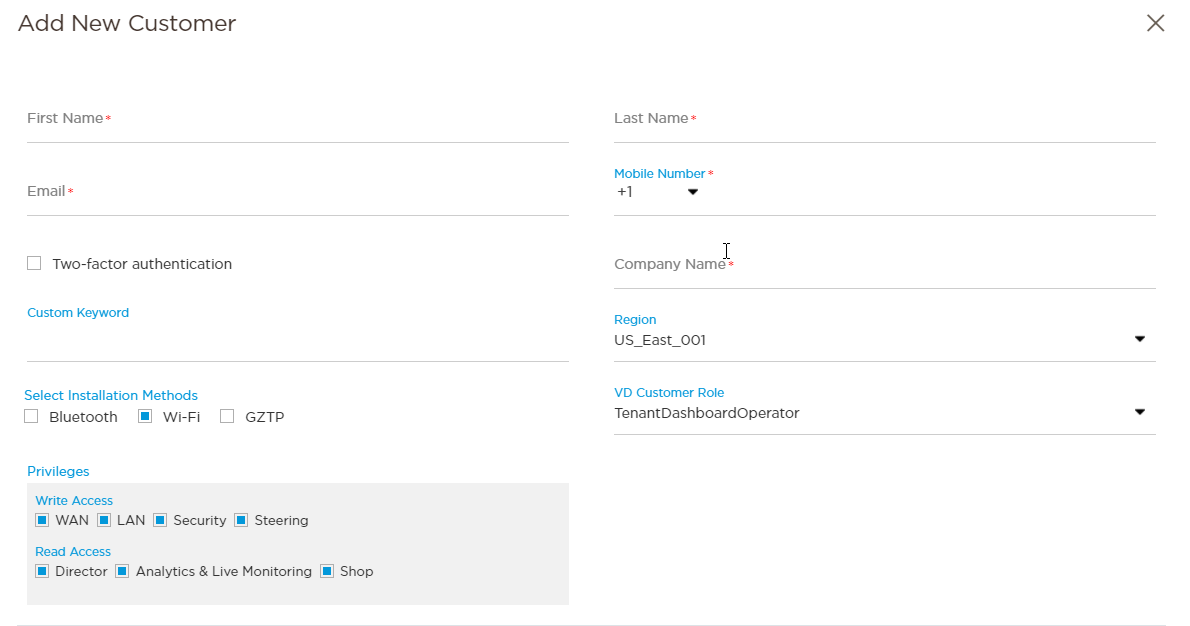
Fill the below form to add Customer which is visible in Titan Dashboard and in VD.
Here you can select the region where you want to deploy your Org ( US-East, US-West Coast, Japan, India-BLR, Frankfurt) regions.
Note: We have 3 shop portal ( US-prod, Japan, Frankfurt) and Region will be available based on that.
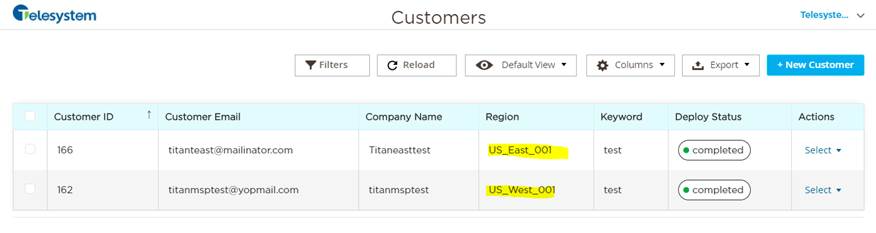
Once customer is added we can see it like below.
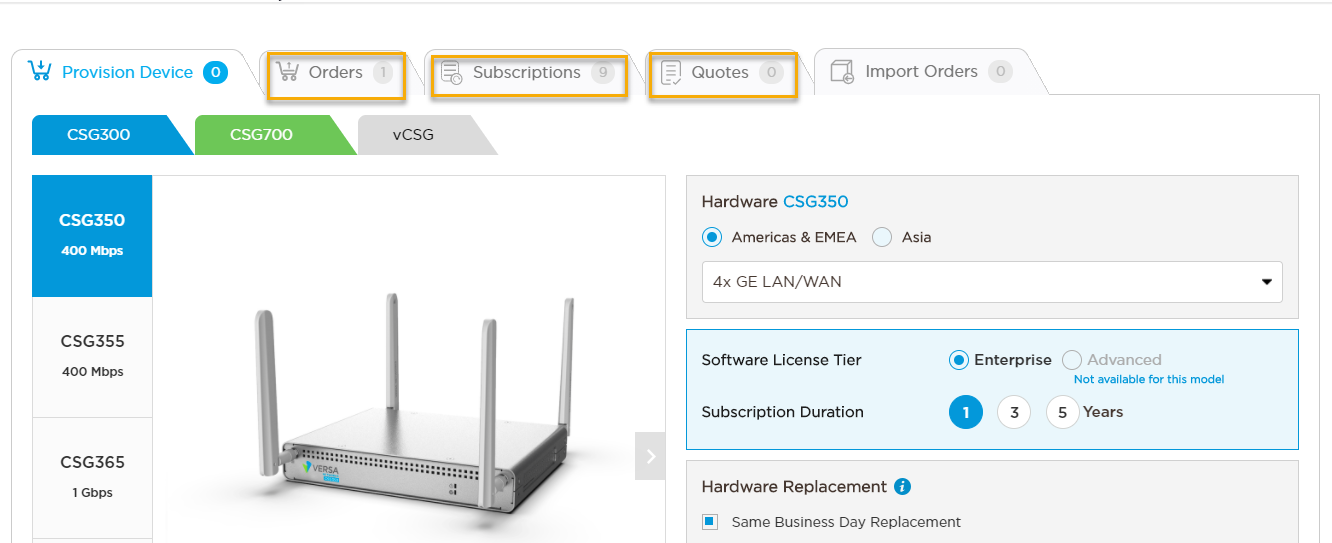
- Now the Customer Org is added we can manage subscription, order and customer quotes.
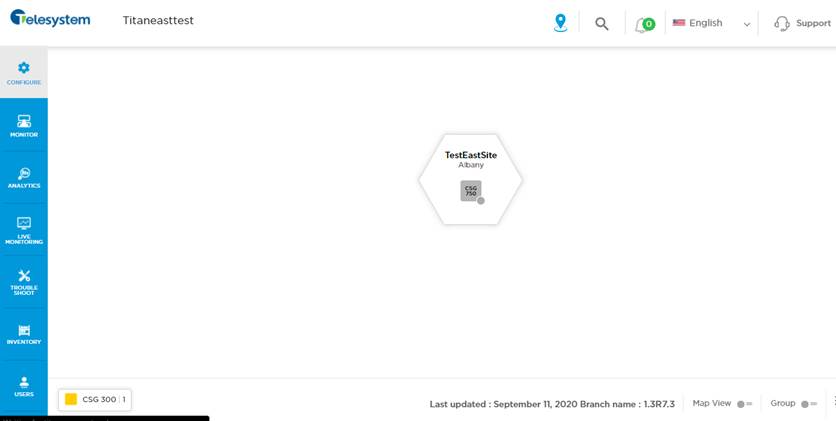
- Login to dashboard using Customer account. Customer will be able to see Org and devices which they have prepared.
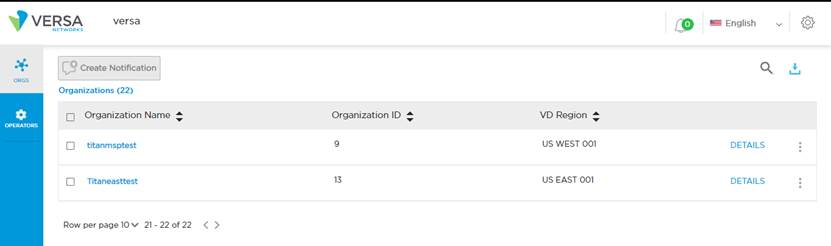
- Now customer can deploy and activate the device.
Troubleshooting:
- If Org deployment is failing check the logs in Titan nodes or check the taskbar associated with Titan Versa Director. From there you’ll get to know why Org deployment is failing.
Provider Org which we used while creating reseller account should be present in Titan Versa Director.