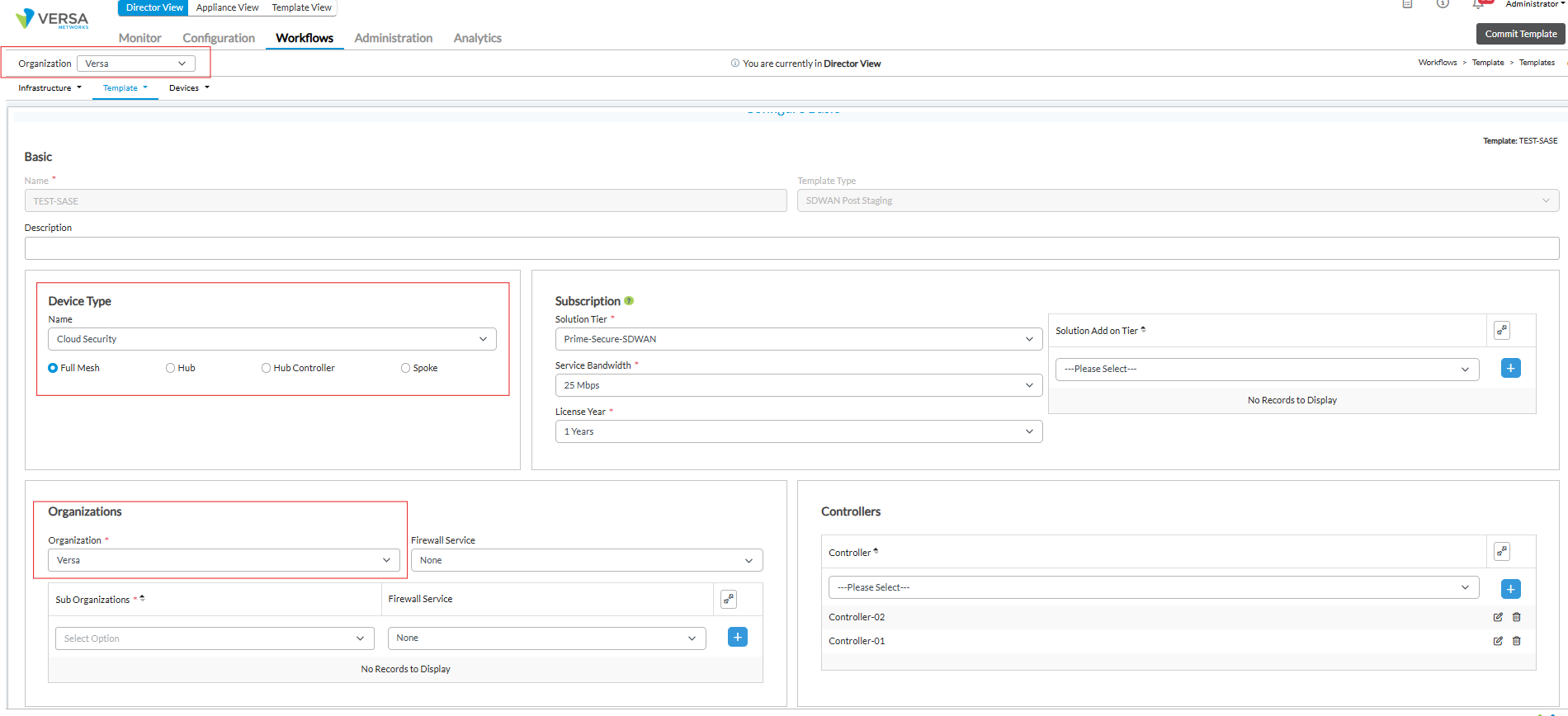
At first create a workflow template under the Parent Org/Tenant in the Director. In the example below the Parent Org is Versa and the Device type has to be Cloud Security.

Create a Workflow Device, include the Parent Org and device Group from the same Parent Org and fill the necessary information required in the Binda Data.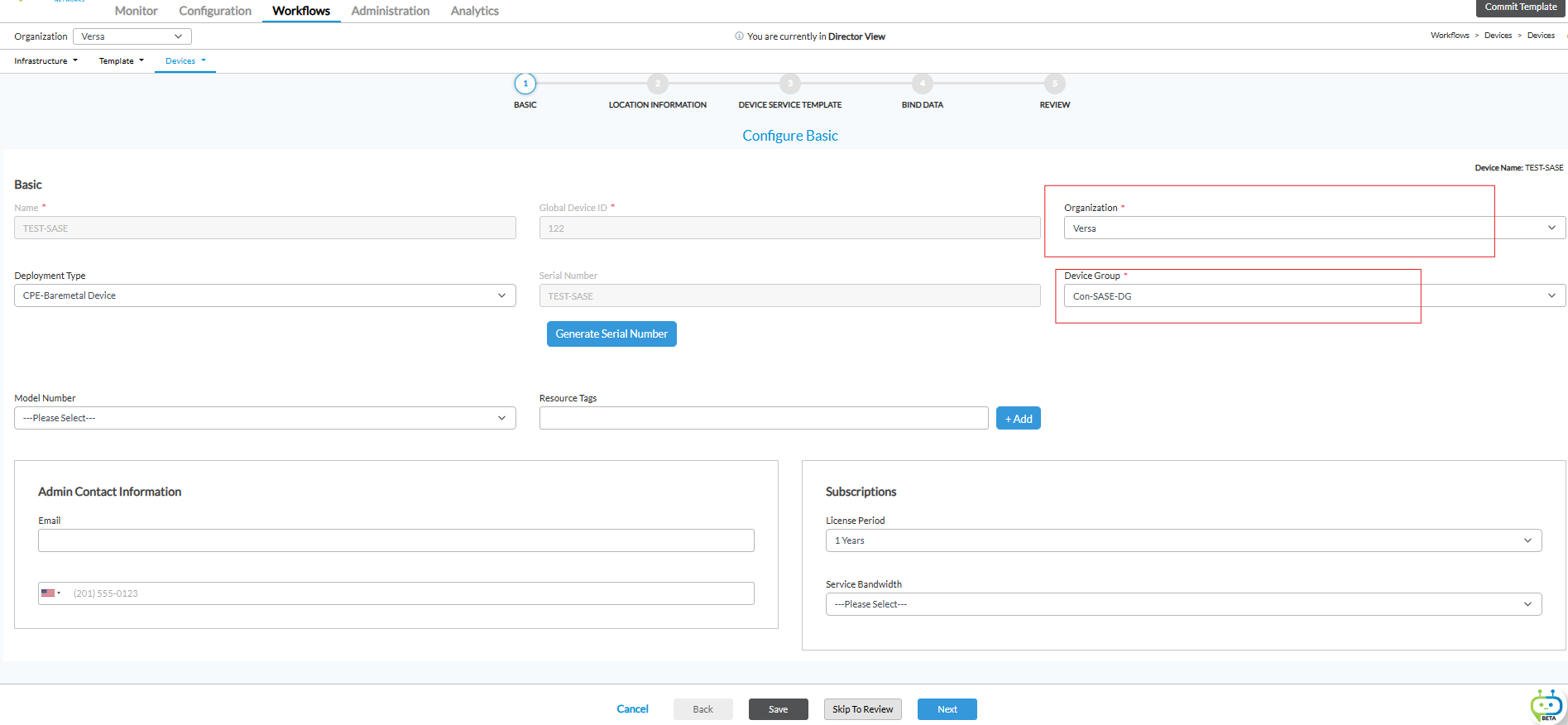
Then stage/create/onboard the device.
Go to the Concerto, Parent Org and click on the Appliance Discovery 
Check the task window to see if the device is discovered.
Verify it in the Parent Org>Inventory> Appliance Inventory
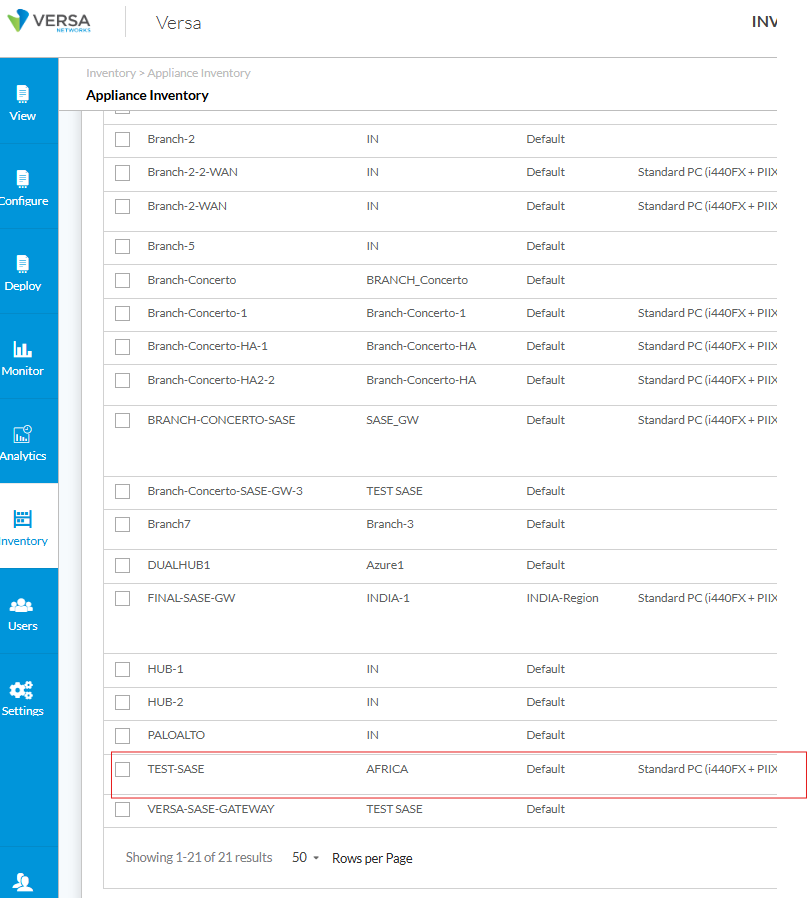
By default the device will be in the Default Region under Deploy>Regions.
Now, you can remove the device from the Default Region and add it to the custom one that you have configured.
Under Sites, AFRICA is inherited from the field Country in the Location Information while creating a Workflow device.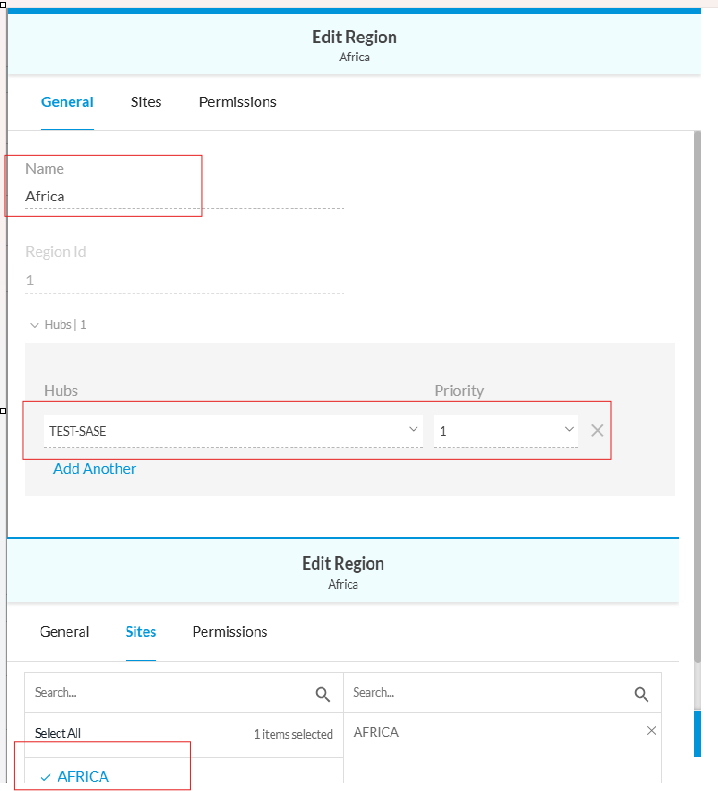
Final steps, now create a sub-tenant, enable Security Service Edge (SSE).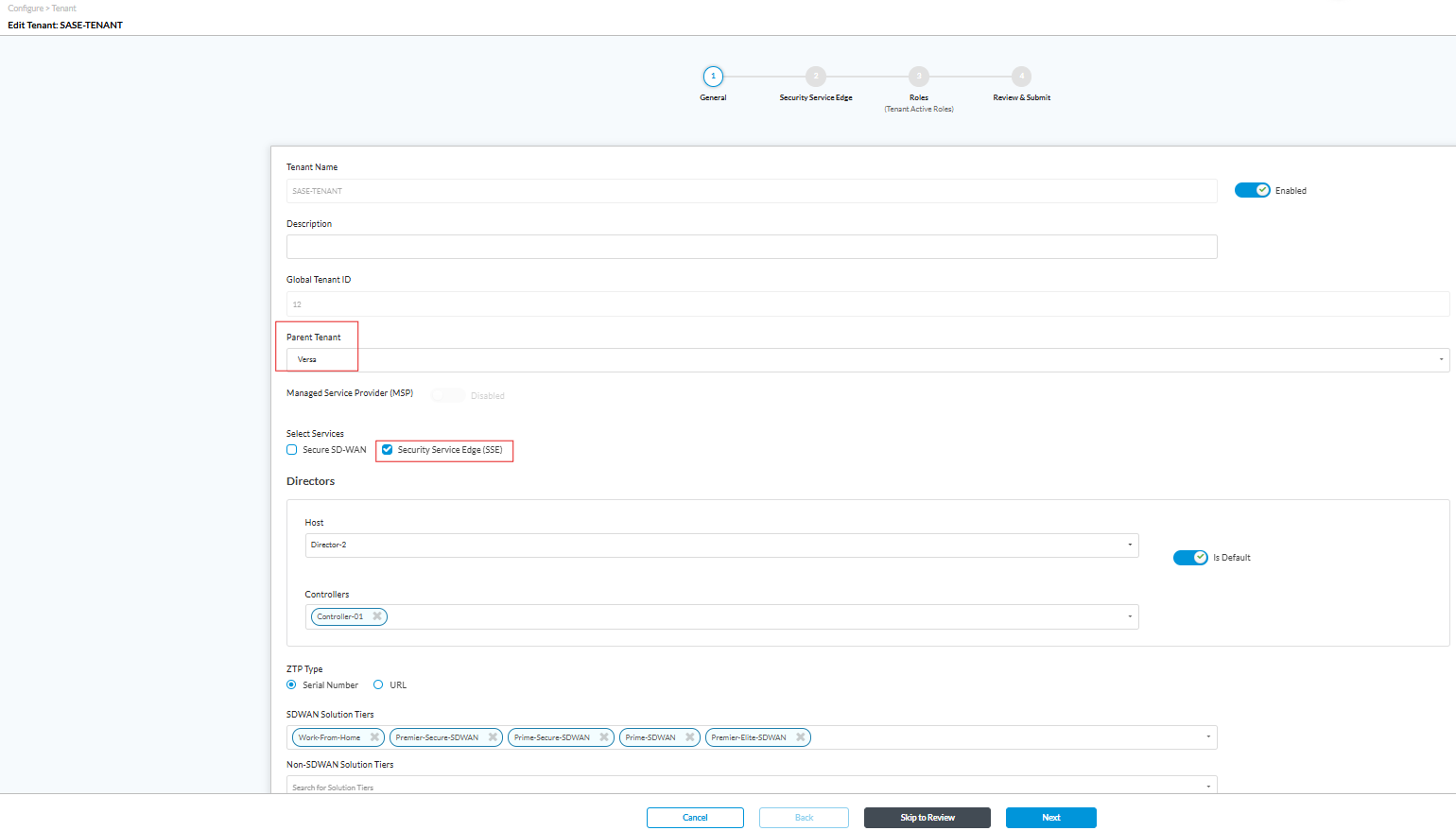
In the SSE tab select the necessary Usage Type and Tenant Product.
Then go to Select Region, it will show you the Available Regions, click on one of the regions and select the the the Gateway which is nothing but the device that we onboard on the director earlier(TEST-SASE) as shown in the screenshot below.
You can select multiple Regions and Gateways.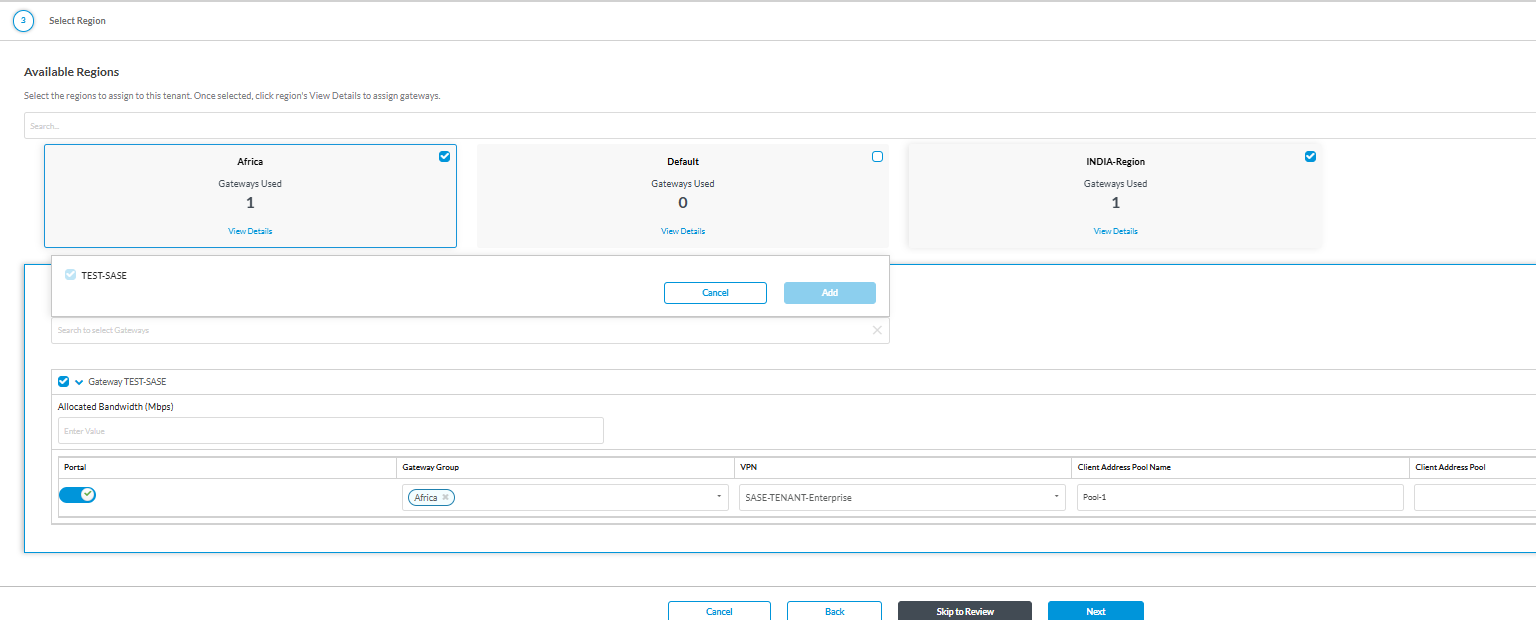
Enter the Client Address Pool as required in the selected Gateway/Gateways and click on next and review the roles and review & Publish.