This document covers configuration steps to enable AWS Transit Gateway Site-to-Site VPN using Workflow Template.
- Overview
- Pre-requisite
- Topology
- Procedure
- Verification
Overview
Instances that you launch into an Amazon VPC can't communicate with your own (remote) network by default. You can enable access to your remote network from your VPC by creating an AWS Site-to-Site VPN (Site-to-Site VPN) connection and configuring routing to pass traffic through the connection. This document explains the procedure to configure IPsec tunnel between On-Prem VOS and AWS Cloud using AWS Transit Gateway with the help of Workflow template. AWS transit gateway is a network transit hub that you can use to interconnect your virtual private clouds (VPC) and On-premises networks. Transit Gateway Network Manager (Network Manager) enables you to centrally manage your networks that are built around transit gateways. With the Site-to-Site VPN using Transit Gateway, On-Prem VOS LAN will have reachability towards VPC prefixes.
In this example we make use of AWS Transit Gateway to interconnect the On-Prem VOS LAN Host (10.213.2.170) with a Server (10.201.2.25) hosted in AWS.
Pre-requisite
- AWS Cloud Admin access to create AWS Global Network and register AWS transit Gateway with Global Network.
- AWS Cloud Admin access to attach VPCs to Transit Gateway
Use case
The site-to-site IPsec tunnel provides VOS device users with secure access to applications and workloads hosted in the cloud. When you create a site-to-site IPsec tunnel between a VOS device and the AWS Transit Gateway, no manual IPsec tunnel and VPN configuration is required on the Transit Gateway. Instead, the Director node configures the IPsec tunnel and VPN site on the Transit Gateway.
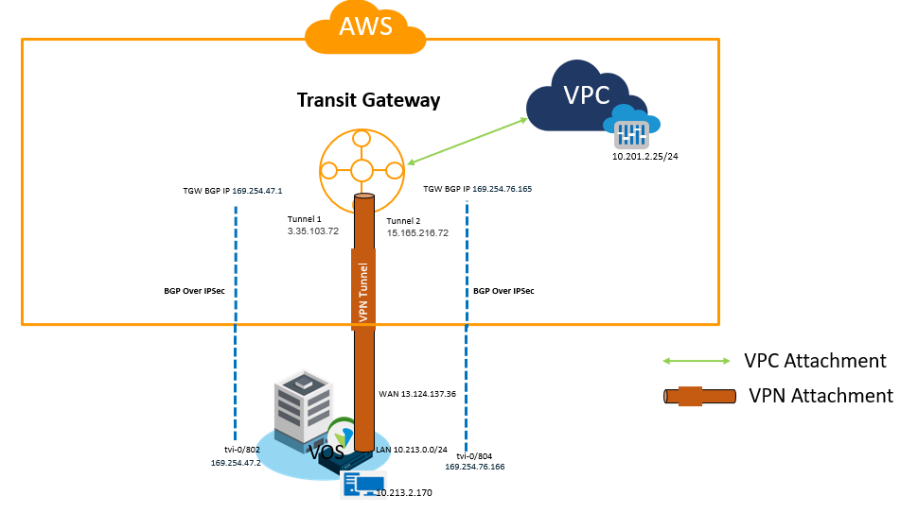
IP Schema
Device | WAN | LAN |
DC(VOS) | 13.124.137.36 | 10.213.2.0/24 |
VPC | NA | 10.201.2.0/24 |
Transit Gateway | 3.35.103.72 | NA |
15.165.216.72 |
Procedure
- For this scenario, we are assuming that the On-prem device is already up and onboarded on to the director. If this a new installation, please refer below URL for VOS activation.

- Create a transit gateway in AWS by following below steps.
- Login to AWS console.
- Services Direct Connect Transit gateway Create transit gateway
- Assign Name and Description of the Transit Gateway along with the ASN number. For this scenario, I am using ASN 65534 for Transit Gateway. You may use any unused private ASN.

- Created Transit Gateway will be visible in VPC dashboard.

- If there is an existing AWS global network, Transit Gateway should be registered with the AWS global network in AWS console, otherwise create an AWS global network and register the Transit Gateway. Check with Cloud Admin for creating the global network ID and to register the Transit Gateway.
Network Manager Global networks <Global Network Name> Transit Gateway

- To bring-up the connectivity between VOS device and Transit Gateway, follow the below procedure.
- Edit the Workflow template that is being used by VOS instance, add the Site-to-Site Tunnel configuration to it and recreate the template.


Field | Description |
Name | Enter a name for the site-to-site tunnel. |
Peer Type | Select AWSTransitGW. |
Tunnel Protocol | The default tunnel protocol for AWS Transit Gateway peer type is IPsec. |
WAN/LAN Network | Select the network to use for AWS Transit Gateway. |
LAN VRF | Select the virtual routing instance to use to reach the LAN, to allow users in the routing instance to access the tunnel to communicate with the gateway. The virtual routing instance is the termination endpoint of the tunnel. |
BGP Enable | For the peer type AWSTransitGW, BGP is automatically enabled. |
NAT Enable | For the peer type AWSTransitGW, click to enable NAT. |
- The Site-to-Site tunnel configuration of Workflow will trigger VPN profiles for two tunnels between Transit Gateway and VOS with one of them as a redundant tunnel.

- Edit the device workflow configuration of VOS and add the tunnel information to the device. This tunnel information is used by Transit Gateway to establish IPsec and BGP sessions with VOS instances.


Field | Description |
Name | Select a site-to-site tunnel. The drop-down lists all the site-to-site tunnels that are in the template. |
Peer Type | Select AWSTransitGW as the peer type. |
Connector | Select the connector that contains authentication details to log on to AWS. |
Region | Select the region in which the transit gateway object is created. |
Virtual WAN ID/Global Network | Select the AWS global network name to which the transit gateway is registered. |
Resource Group/Transit Gateway | Select the transit gateway for AWS. |
PSK | Enter the private shared key (PSK) that is used to create a tunnel. |
BGP Enabled | This field is checked automatically. |
BGP AS Number | Enter the BGP local AS number for the routing instance. For this scenario, we are using 64514 for routing instance Cloud-Lab-LAN-VR |
NAT Enabled | This field is checked automatically if NAT is enabled in the Workflow template. |
NAT Address | Enter the NATed public IP address. Configure this address when a public IP address on a WAN port is NATed. |
- When the device is Redeployed with the tunnel information through Workflow, we should see Transit Gateway attachment with resource type as "VPN" in AWS Console.

- Commit the Workflow template to push the Site-to-Site tunnel configuration to the DC device.

- From AWS console go to VPC routing table and add static route for DC LAN subnets with target as the Transit Gateway for required routing on remote VPCs. In this scenario, DC LAN subnet is 10.213.2.0/24 and the static route for 10.213.2.0/24 with target as tgw-08ad18fc9dead8c72 is added to the routing table of the VPC.
 Verification
- Workflow template will create two VPN profiles on VOS which will be used for IPsec tunnels between VOS and Transit Gateway.


- IPSec session between TGW and VOS is in UP state
Director UI monitor services IPSEC


- BGP session between TGW and VOS is in established state over each IPsec tunnel.
Director UI monitor services BGP neighbour

- Tunnel status on Transit Gateway

- Below output shows remote VPC subnets are reachable through Transit Gateway via BGP and the traffic from VOS LAN towards remote VPC is passing through Transit Gateway.


