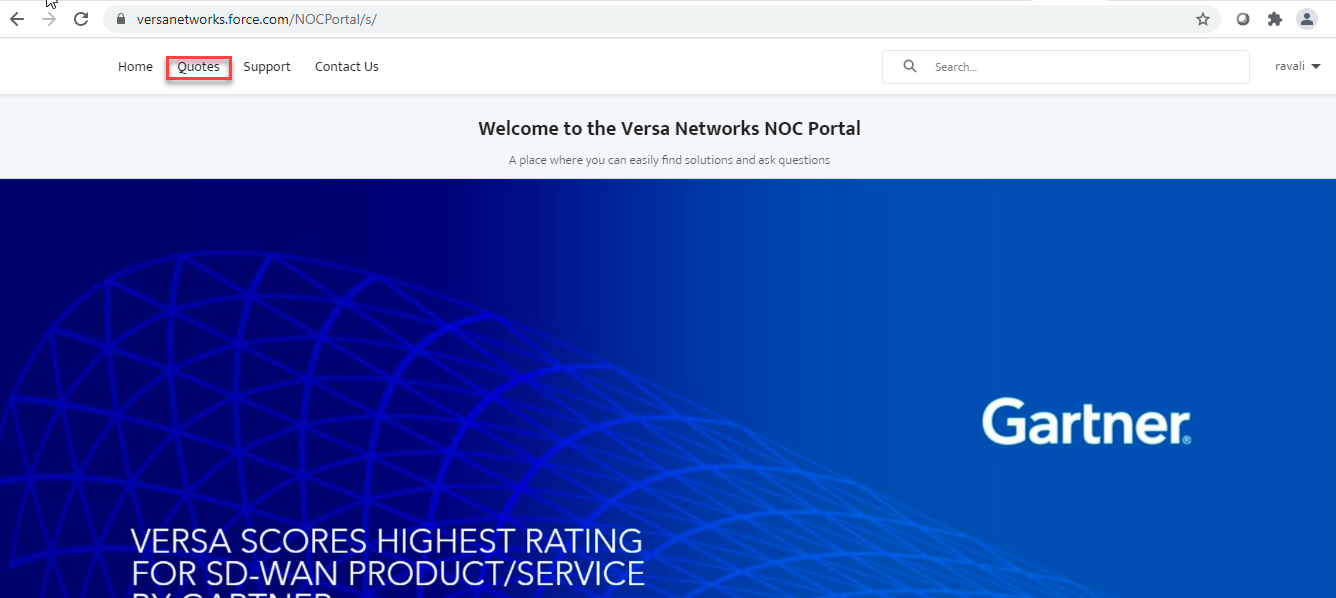
PO requests will come to NOC as email from SFDC portal. Alternatively, you can check new PO’s in SFDC portal
To check any new PO in SFDC portal login using below link and use individual credentials provided.
https://versanetworks.force.com/NOCPortal/s/
Click on Quotes.
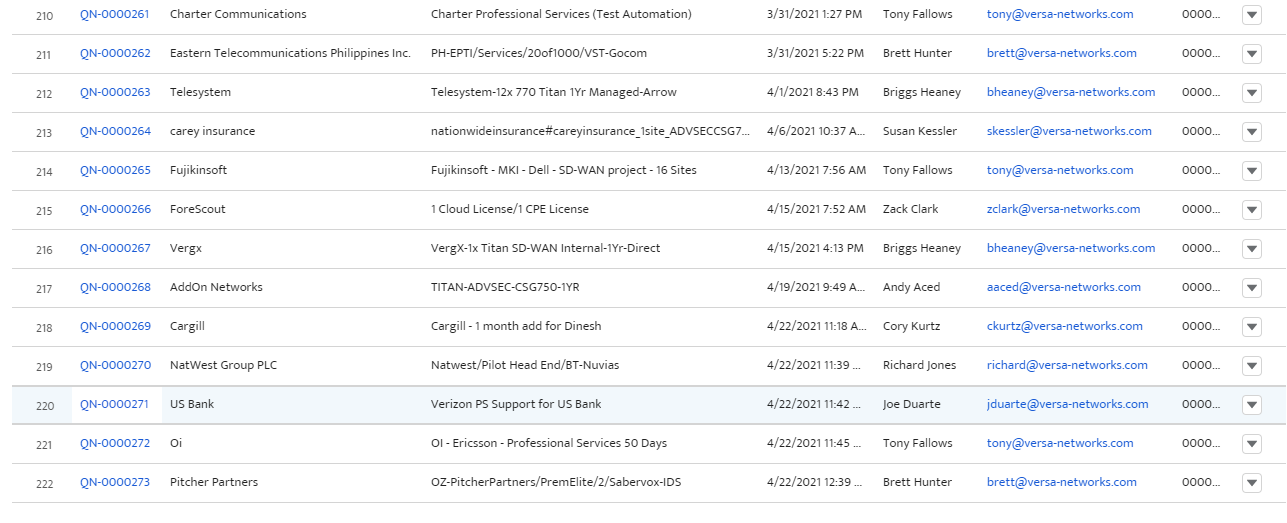
Check for any latest Quote from the list. Click to select any Quote.
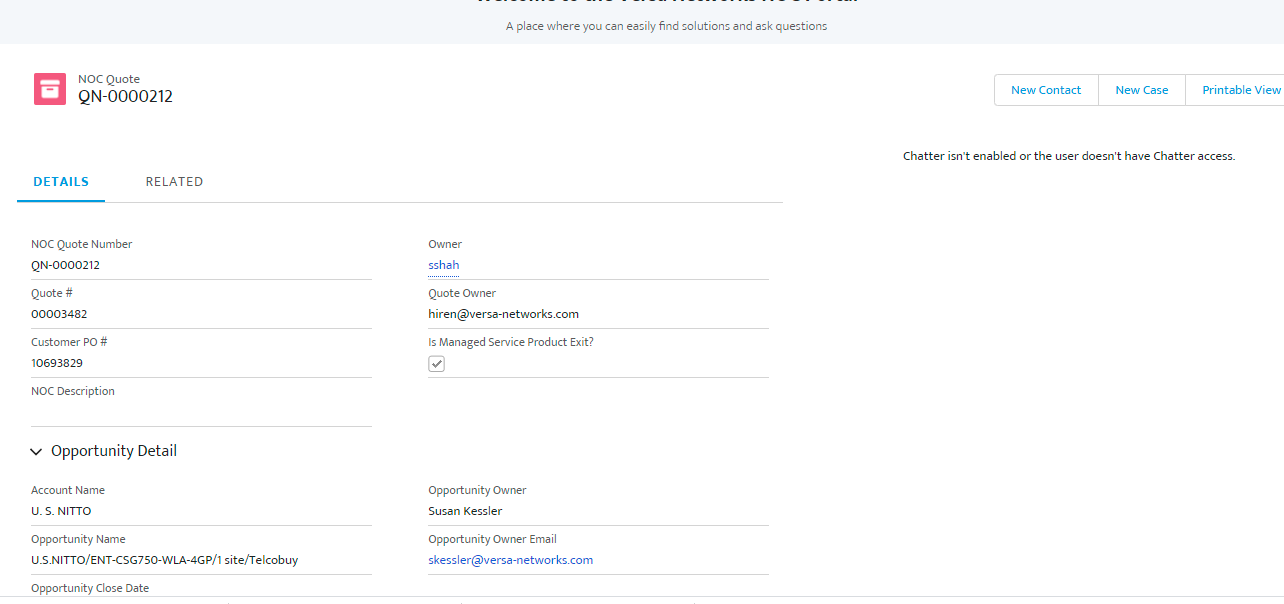
To create a customer in titan we need to get below details .Please get them from the quote owner/sales person.
Customer Name :
Customer email and Contact no :
Customer Location and address :
Region [ we have EMEA, JAPAN, Bangalore, US East and US West] :
Device SKU name :
Note: If SKU name is like Titan-ADVSEC-CSG365-3YR with no xxx-yyy then we only have to select below option while purchasing devices. (6 x GE LAN/WAN - with no LTE and WIFI option).
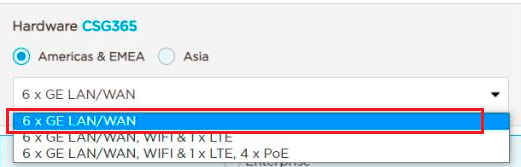
How to create TITAN customer
Login to TITAN shop portal as reseller using below link
https://titan.versa-networks.com/shop/
Login as reseller use. Find the credentials in the Noc one note sheet shared .
Click on “New Customer”
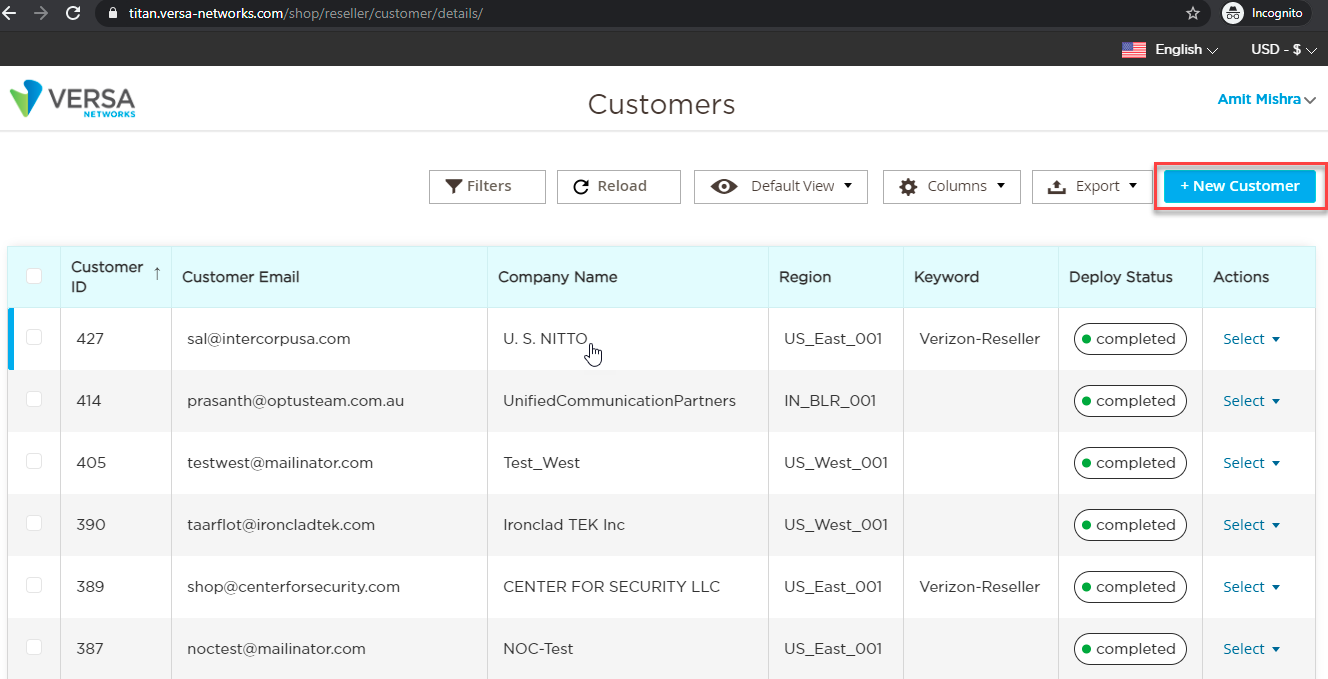
Fill the customer details .
Custom-Keyword: Customer key word can be used to give any label to customer.
Eg: Like Verizon-Reseller for the customers under Verizon.
Select Installation Methods: Select all
Region: Select the region as per PO (BLR,US-EAST,US-WEST)
Click “Create customer” to complete the configuration.
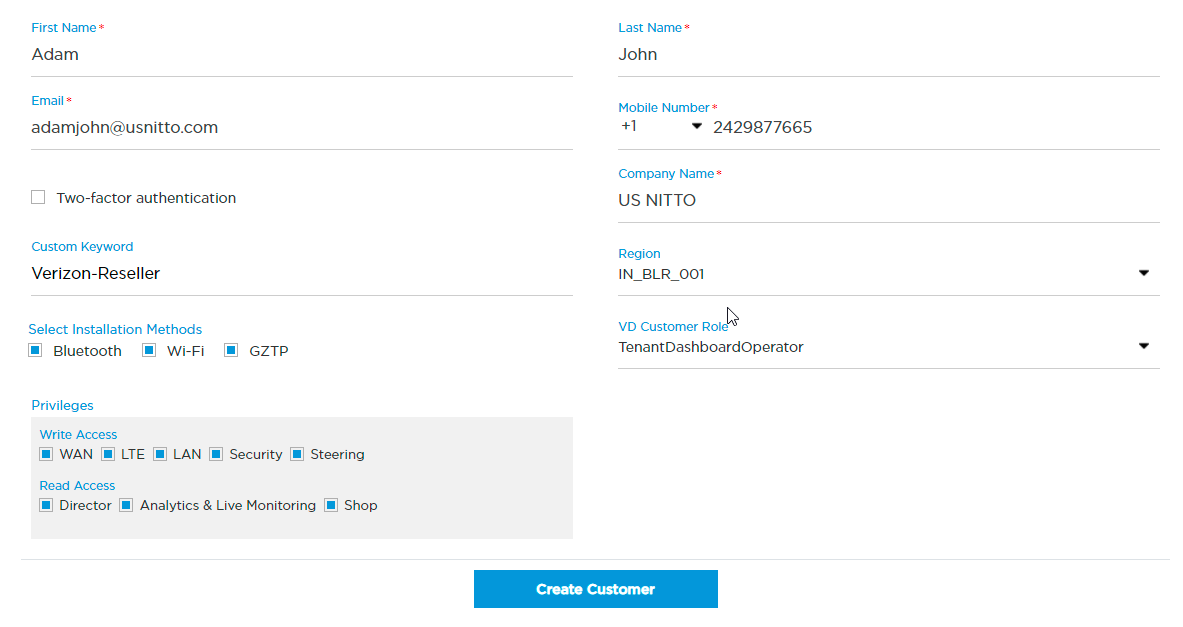
Once this is done customer name will be visible in the list as below. The Deploy status will be “Pending” initially. Wait for some time for the deployment to finish .You should see deploy status as “completed” if the customer is created successfully .
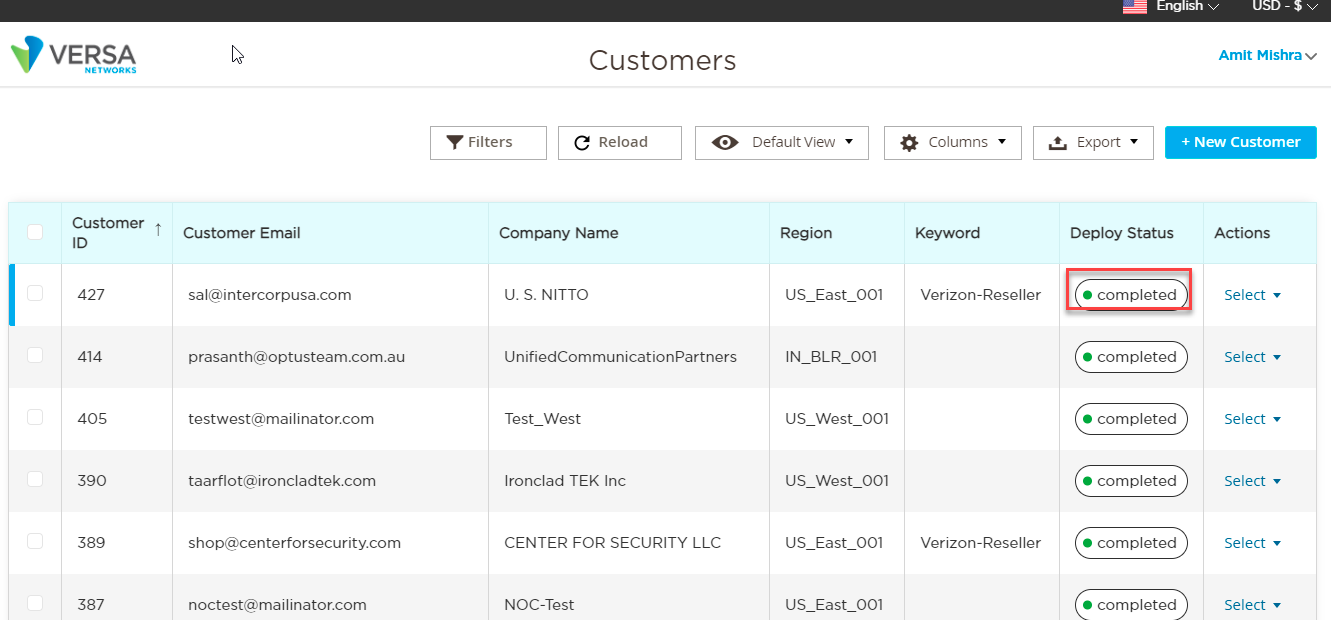
How to add devices and subscription to newly created customer account.
Select the customer from the list and click to open.
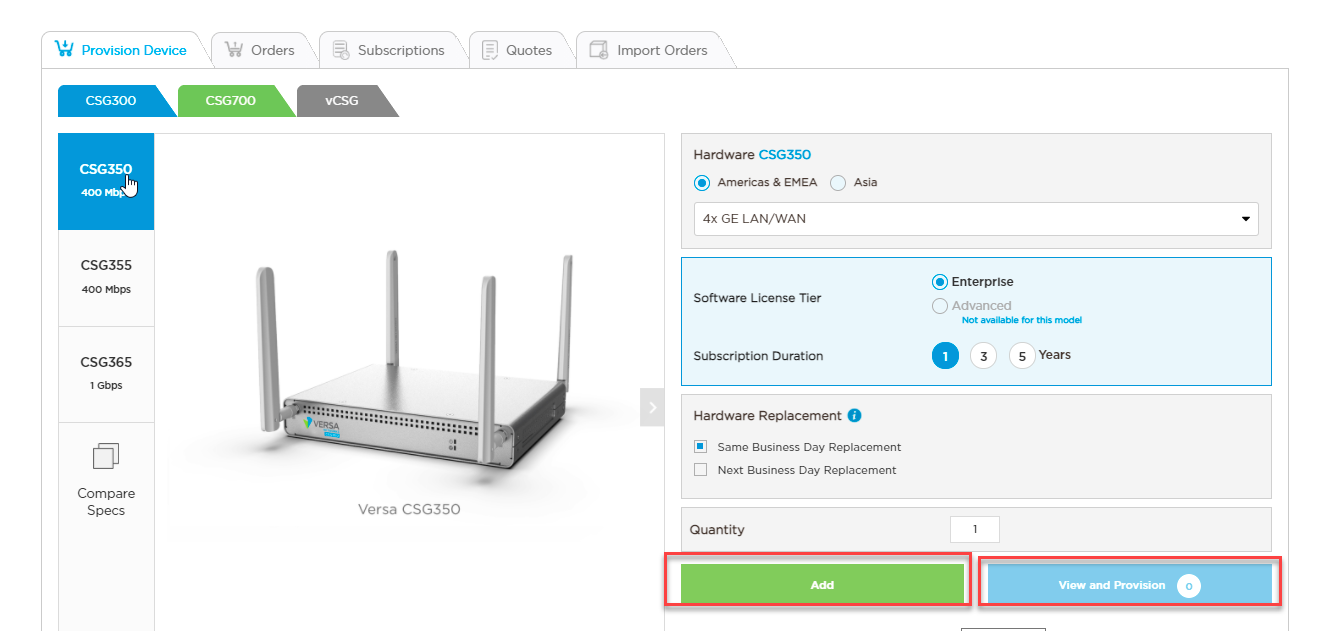
Select the device ,model.Subscription,Enerprise/Advanced etc as per the PO.
Appliance SKU will be of format “model – xxx – yyy”
model indicates the CSG700 appliance model number. It can be one of the following:
- CSG730
- CSG750
- CSG770
xxx indicates the number and type of wireless modules. It can be one of the following:
- WLA—1 WiFi module and 1 LTE module (North America)
- WLB—1 WiFi module and 1 LTE module (APAC)
- 2LA—2 LTE modules (North America)
- 2LB—2 LTE modules (APAC)
- LA—1 LTE module (North America)
- LB—1 LTE module (APAC)
- W—1 WiFi Module
yyy indicates the type and number of NIC ports. It can be one of the following:
- 4GP—4 general-purpose NIC ports
- 8GP—8 general-purpose NIC ports
- T1/E1—1 T1/E1 NIC port
- xDSL—1 VDSL NIC port
Click “Add” to complete the order and then click “View and Provision”.
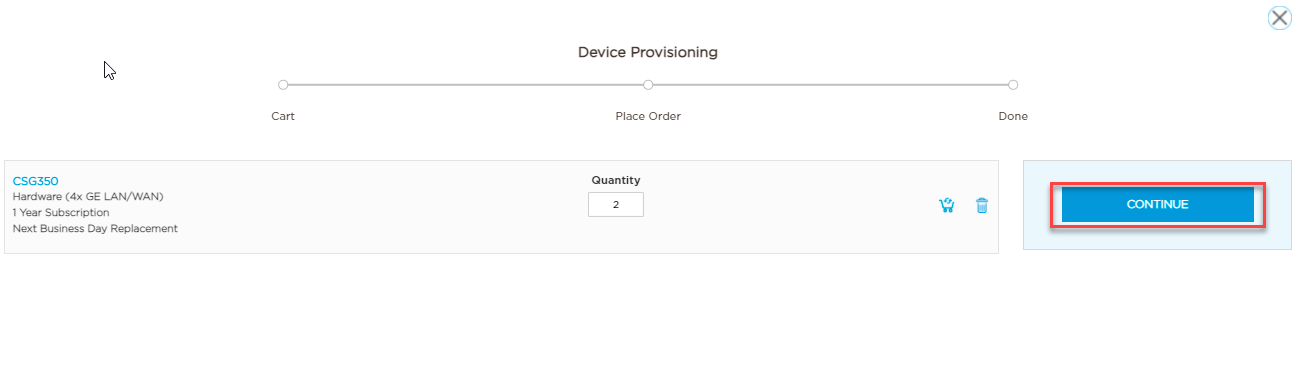
Click CONTINUE
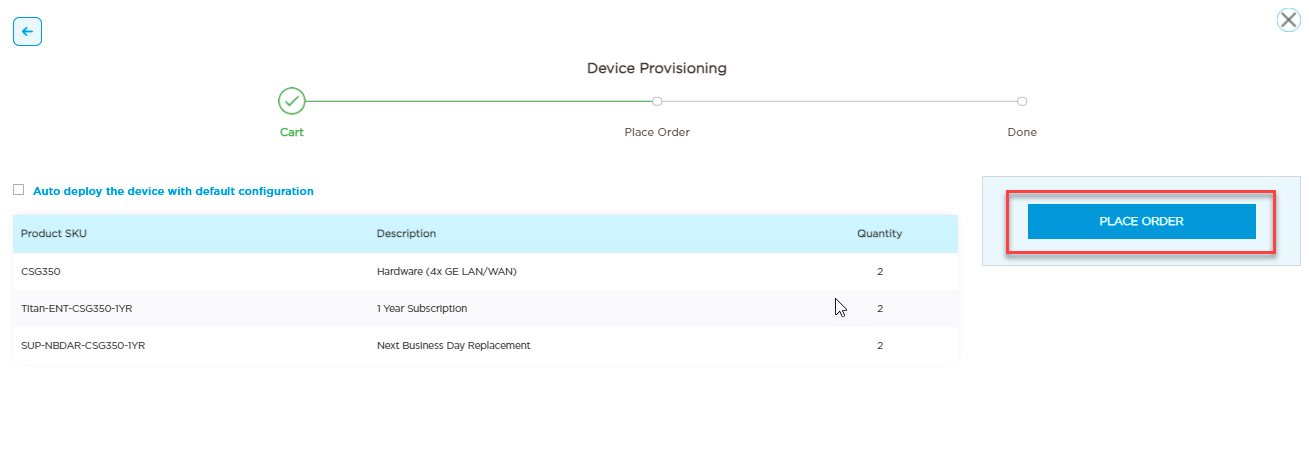
Confirm the order summary and click PLACE ORDER
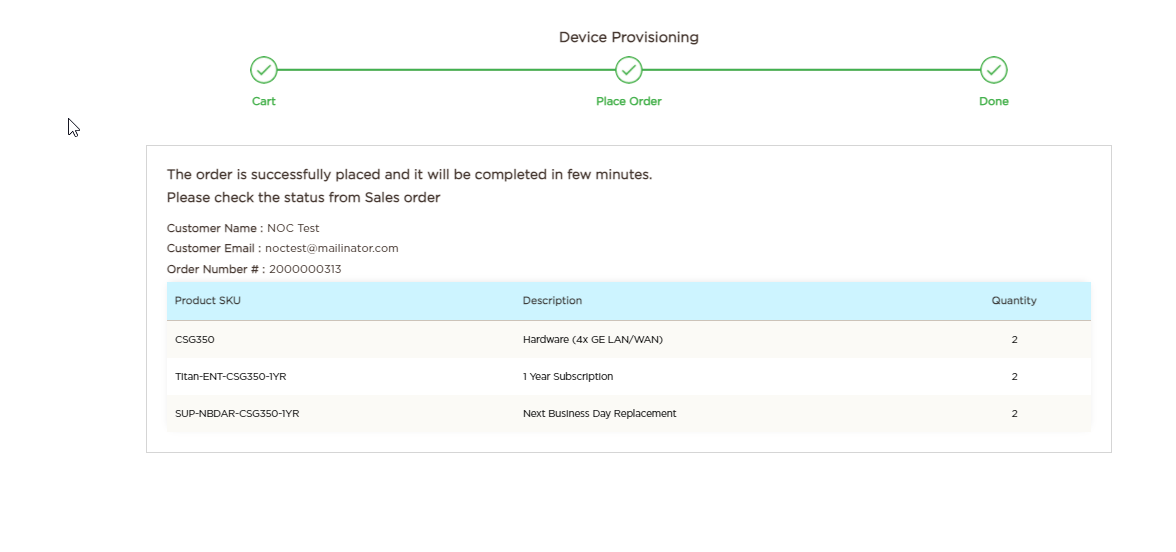
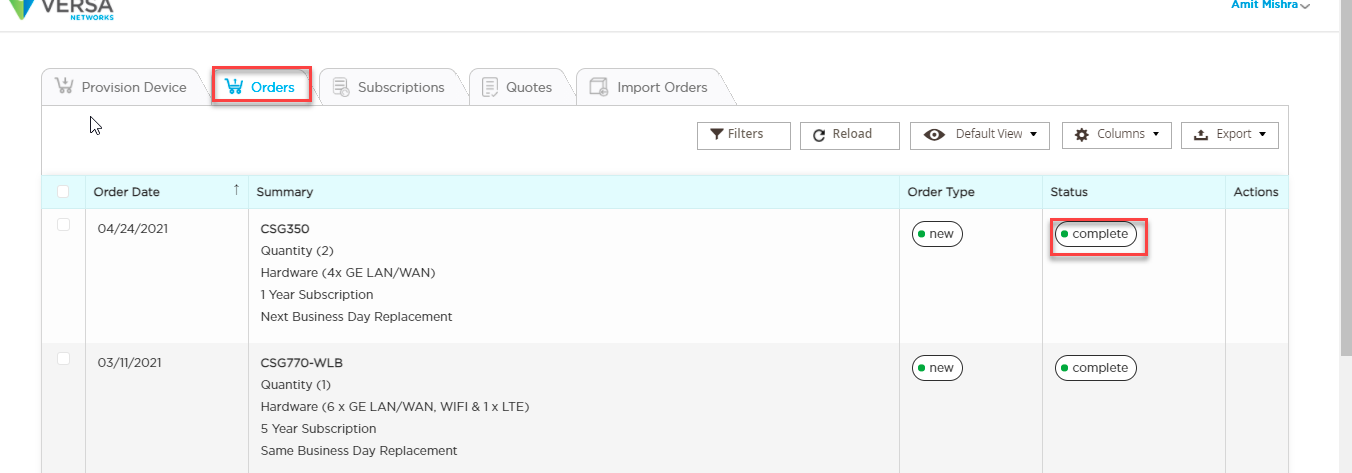
Select Orders to view the status. Status will show completed if successful.